

How to Check Hotspot Consumption on iPhone & Android
Nov
When traveling or sharing your mobile data, it’s essential to check hotspot consumption to avoid running out of data unexpectedly. Both iPhone and Android devices let you monitor how much data your hotspot is using – helping you manage your plan efficiently and stay connected without surprise charges.
Whether you’re tethering a laptop for work or sharing Wi-Fi with friends, keeping an eye on hotspot usage ensures your data lasts the entire trip. In this guide, we’ll show you how to track, manage, and optimize hotspot consumption step-by-step on both platforms.
Why You Should Check Your Hotspot Consumption
Regularly checking your hotspot consumption is essential to avoid unexpected data overage charges and sudden drops in internet speed due to throttling. When you monitor your hotspot data usage, you gain insight into how much data different activities consume from high-bandwidth tasks like video calls, streaming, and online gaming, to lighter activities like browsing or emailing. This helps you identify data-hungry apps and adjust your habits to stay within your plan’s limits. For frequent travelers or remote workers who rely on mobile tethering, managing data efficiently ensures smooth connectivity wherever you go. By making it a habit to check your hotspot consumption, you’ll not only stretch your data further but also maintain faster, more reliable internet performance throughout your billing cycle.
How to Check Hotspot Consumption on iPhone
Keeping track of your hotspot data is the best way to avoid surprise overage charges — especially if you’re using your iPhone to stay connected while traveling. Here’s how to check your hotspot consumption on iPhone in just a few steps:
- Open Settings and tap Mobile Service (or Cellular, depending on your iOS version).
- Scroll down to the Mobile Data from Primary section. If you’ve renamed your SIM, you’ll see Mobile Data from [Your SIM Name] instead. Tap it.
- Locate the Personal Hotspot section. Here, you’ll find a detailed breakdown of which devices connected to your iPhone’s hotspot and how much data each one used.
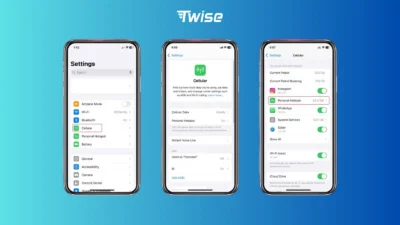
Pro tip: To monitor your hotspot data more accurately, reset your statistics at the start of every billing cycle. Simply go to Settings → Mobile Service, scroll down, tap Reset Statistics, and confirm. This lets you track exactly how much data you’ve used for the month – a must for frequent travelers and digital nomads.
If you often use your iPhone hotspot abroad, pairing it with a Twise eSIM makes managing your data even easier. You can instantly activate local data plans, avoid roaming fees, and keep full control over your connection wherever you go.
How to Check Hotspot Consumption on Android
Checking your hotspot data usage on Android is quick and straightforward – and it’s a smart move if you want to avoid running out of data or getting slowed down by throttling. Here’s how to check your hotspot consumption on Android step by step:
- Open the Settings app on your Android device and tap Connections (or Network & Internet, depending on your phone model).
- Tap Data Usage to view your current mobile data statistics.
- Next, select Mobile Data Usage to see a detailed breakdown of which apps and features have used the most data.
- Scroll down and find Mobile Hotspot and Tethering, then tap it.
- Here, you’ll see exactly how much data your Android phone has used while acting as a hotspot for other devices during the current billing period.
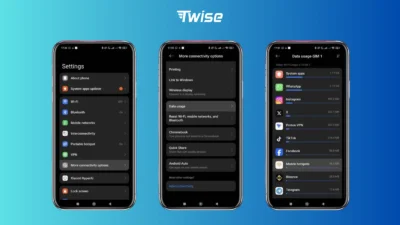
Pro tip: Many Android devices allow you to set a data warning or limit. You can enable this feature under Settings → Data Usage → Data Warning & Limit to get notified before you reach your cap.
If you’re traveling and rely on your phone as a hotspot, using a Twise eSIM gives you extra freedom – affordable local data, instant setup, and no surprise roaming charges. Stay connected anywhere without worrying about your data balance.
How to Check Hotspot Consumption with Your Carrier
Another reliable way to check hotspot consumption is through your mobile carrier’s official tools. Most carriers provide an overview of your data usage, often including how much of your plan is dedicated to hotspot or tethering data.
To view this information, simply log in to your carrier’s mobile app or online account portal, navigate to the Data Usage section, and look for a line labeled Hotspot Data or Tethering Data. This gives you a clear picture of how much hotspot data remains in your plan.
Keep in mind that not all carriers display hotspot usage separately. If your carrier doesn’t offer this breakdown, the most accurate way to check hotspot consumption is directly from your device’s built-in data tracker on iOS or Android.
Tips to Reduce Hotspot Consumption
If you’re trying to cut down on hotspot data usage, a few smart habits can go a long way toward preventing overage fees and keeping your connection steady. Here’s how to manage your data more efficiently:
1. Disable automatic updates on connected devices
System and app updates can consume large amounts of data in the background. Turn off automatic updates on laptops, tablets, and phones while using your mobile hotspot to prevent them from draining your data unexpectedly.
2. Lower your streaming quality
Whether you’re watching Netflix, YouTube, or listening to Spotify, streaming in lower quality can significantly reduce data consumption. Better yet, download your favorite shows or playlists ahead of time when you have Wi-Fi access.
3. Turn on “Data Saver” mode
Both Android and iPhone devices feature a built-in Data Saver option that limits background activity and helps your data last longer. Enable it to reduce total data usage across apps and background services.
4. Use lightweight or data-saving apps
Opt for “Lite” versions of popular apps like Instagram Lite, Facebook Lite, or Opera Mini. These versions use data compression technology, which helps minimize data usage when you’re connected through a hotspot.
5. Consider an eSIM plan with generous data
If your carrier plan limits hotspot usage, an eSIM with flexible or unlimited data can help you stay connected without worrying about running out before your next billing cycle. Services like Twise eSIM make it easy to activate local or regional data plans instantly – a convenient option for frequent travelers who need reliable hotspot access abroad.
If you’re not sure whether your eSIM supports hotspot or tethering, check out our guide on Does eSIM Support Hotspot Sharing?
Use an eSIM for Hotspot Usage While Traveling Abroad
If you often rely on your phone as a full-time mobile hotspot, choosing a data plan that supports unlimited tethering is the smartest move. That’s where the Twise eSIM Global Plans make life easier. With Twise, you can enjoy unlimited data and high-speed hotspot connectivity across 190+ international destinations, perfect for travelers, remote workers, and digital nomads who need constant, reliable internet on the go.
With a Twise eSIM, there’s no need to worry about switching SIM cards or facing roaming surprises. You can manage your plan, top up, and stay connected directly from your phone, all in just a few taps.
No matter where you travel, Twise ensures you’ll never have to stress about checking your hotspot consumption again, giving you total freedom to work, stream, and explore the world without limits.
