

Why Does My iPhone Say SOS Only? Meaning, Fixes, eSIM & Roaming Troubleshooting
If your iPhone says SOS or SOS Only, it means your phone is not connected to your normal cellular network. You may still be able to make emergency calls through another available carrier network, but regular calls, SMS, and mobile data may not work on that line.
This does not always mean your iPhone is broken. In many cases, SOS appears because of weak signal, a carrier outage, a SIM or eSIM issue, roaming being off, a travel eSIM not activating yet, or the wrong cellular data line being selected.
For travelers, SOS often shows up at the worst moment: after landing, inside an airport, on a train, in a hotel basement, or while trying to use maps and mobile data abroad. The right fix depends on whether the problem is coverage, carrier service, SIM/eSIM settings, roaming, activation, or account status.
Quick Answer: Why Does My iPhone Say SOS Only? What does SOS Only mean?
When your iPhone says SOS, your iPhone cannot connect to your normal mobile carrier. Emergency calling may still be available through other networks, depending on your country, device, and available coverage.
| iPhone status | What it usually means | What may still work |
| SOS / SOS Only | Not connected to your normal carrier, but emergency calls may be possible | Emergency calls and Wi-Fi apps |
| No Service | Not connected to a cellular network | Wi-Fi apps |
| Searching | iPhone is trying to find a cellular network | Wi-Fi apps |
| Wi-Fi connected but SOS shown | Wi-Fi works, but cellular service does not | Internet apps over Wi-Fi |
| One SIM says SOS, another eSIM works | One line has no service, but another line may still provide data | Mobile data on the working line |
SOS does not automatically mean your iPhone is damaged. It usually means your phone cannot connect to your cellular provider at that moment. The cause may be poor coverage, carrier outage, SIM/eSIM settings, roaming restrictions, activation delay, account status, or a temporary software glitch.
What You Can and Cannot Do When Your iPhone Says SOS
When your iPhone says SOS, the first thing to understand is what still works. This helps you avoid wasting time on the wrong fix.
Emergency calls may still work
SOS means your iPhone may still be able to call emergency services through another available carrier network. This is a safety feature, not a normal mobile connection.
Do not assume emergency calling works in every country, every location, or every signal condition. If you are in a remote area, underground, or inside a thick building, even emergency connectivity may be limited.
Mobile data usually will not work on that line
If the affected line is showing SOS, mobile data from that line usually will not work. That means apps such as Google Maps, WhatsApp, Safari, Uber, airline apps, and hotel apps may stop working unless you are connected to Wi-Fi or another active eSIM line.
This is why travelers often notice SOS when they try to use mobile data after landing in another country.
Wi-Fi may still work
Wi-Fi is separate from cellular. If you can connect to airport Wi-Fi, hotel Wi-Fi, café Wi-Fi, or home Wi-Fi, your internet apps may still work even while the cellular status shows SOS.
This can help you contact support, open your eSIM instructions, check your booking, download carrier settings, or message someone through WhatsApp, iMessage, email, or another internet-based app.
Another eSIM line may still work
If your iPhone uses Dual SIM or multiple eSIMs, one line can show SOS while another line still works.
For example, your home SIM may say SOS abroad because it has no roaming connection, while your travel eSIM may still provide mobile data. In that case, the important setting is which line is selected for Cellular Data.
Fast Fixes to Try First
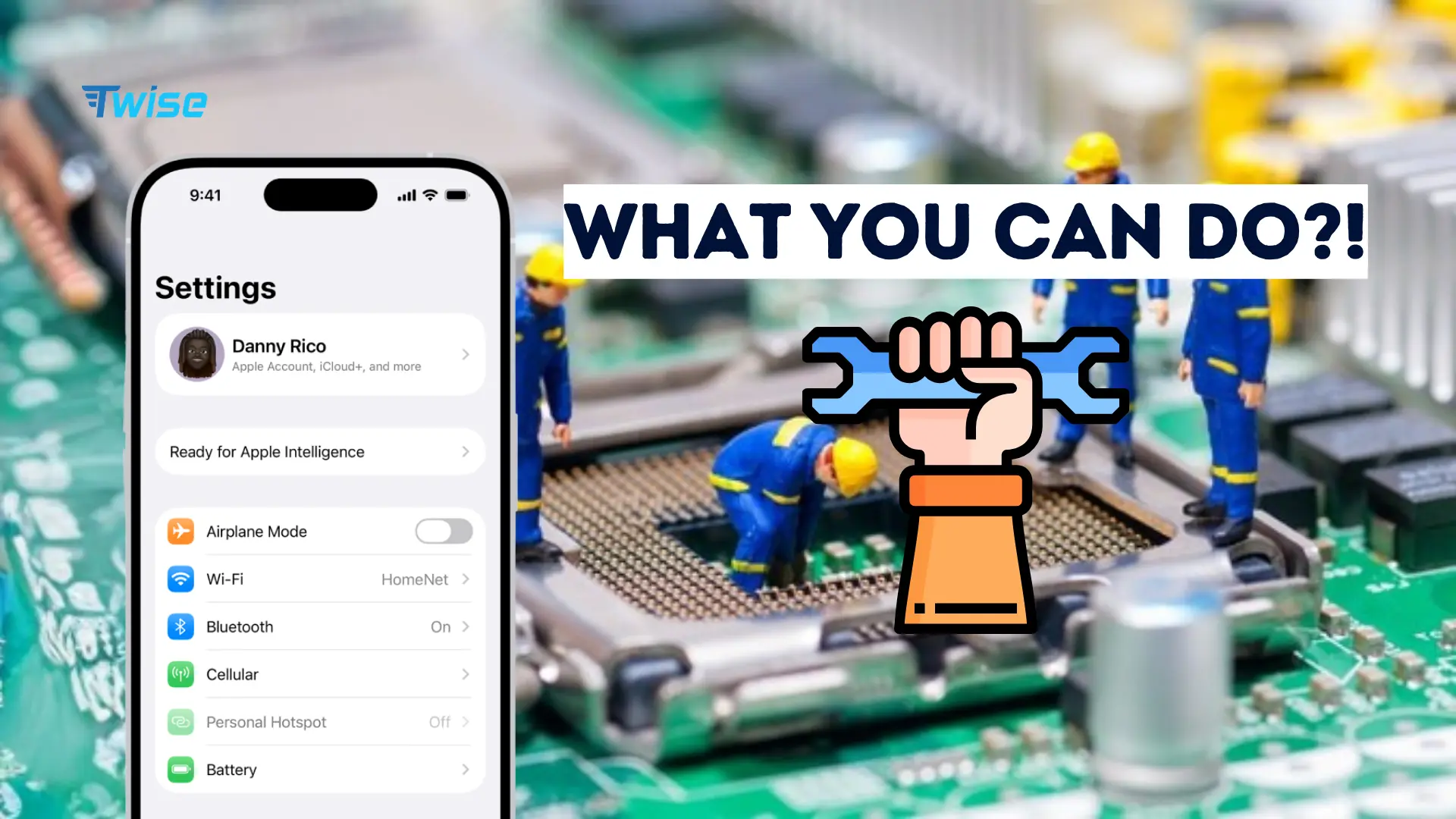
Start with simple fixes before changing deeper network settings. Most SOS issues are caused by temporary connection problems, weak coverage, or a line setting that can be refreshed.
1. Move to a better signal area
If you are in an elevator, basement, parking garage, train tunnel, airport corner, rural area, or thick concrete building, move near a window or go outside.
This matters because your iPhone may be working normally but unable to reach your carrier’s network from that exact spot. Travelers often see SOS in underground stations, airport arrival halls, hotel basements, and remote roads.
2. Toggle Airplane Mode
Turn on Airplane Mode for at least 15 seconds, then turn it off again. This forces your iPhone to drop the current network attempt and search again.
You can do this from Control Center or from Settings. After turning Airplane Mode off, wait a little while. Your iPhone may need time to reconnect, especially if you just landed in another country.
3. Restart your iPhone
A restart clears temporary software glitches and forces your iPhone to reconnect to available networks.
This is especially useful after a flight, an iOS update, a SIM swap, an eSIM installation, or a long period with Airplane Mode enabled.
4. Check for a carrier outage
If other people using the same carrier nearby also have no service, the issue may be a carrier outage rather than your iPhone.
At home, this could mean a local tower problem. While traveling, it could mean your home carrier’s roaming partner is unavailable or unstable in that area.
5. Check that Cellular Data is on
Go to Settings > Cellular and make sure Cellular Data is enabled for the line you want to use.
If you have more than one SIM or eSIM, check that the right line is selected. A common travel mistake is installing a travel eSIM but leaving the old home SIM selected as the data line.
If You Use eSIM: Check These Settings
Many SOS problems happen after installing or switching to an eSIM. This does not always mean the eSIM is bad. It often means the line is off, the wrong data line is selected, roaming is not set correctly, or activation has not completed yet.
Make sure the eSIM line is turned on
Open Settings > Cellular and look at your SIMs or eSIMs. Tap the eSIM you want to use and make sure Turn On This Line is enabled.
If the line is off, your iPhone will not use that eSIM even if the profile is installed.
Select the correct mobile data line
In Settings > Cellular > Cellular Data, choose the line that should provide mobile data.
If you are traveling, this is usually your travel eSIM. If your home SIM is selected for Cellular Data but has no roaming connection, your phone may show SOS or mobile data may fail even though the travel eSIM is installed.
Turn off old travel eSIMs
Old travel eSIMs can create confusion. If you have several eSIMs from previous trips, turn off the ones you are no longer using.
This makes it easier to see which line is active and reduces the chance of choosing the wrong data line.
Check whether the eSIM has actually activated
Some eSIMs install before travel but only activate after connecting to the destination network. Others may require processing time before they are ready.
If your eSIM appears installed but has no service, use Wi-Fi to check the activation instructions. Look for details such as when the plan starts, whether data roaming must be on, and whether activation happens only after arrival.
Do not delete the eSIM too quickly
Do not delete your eSIM as the first troubleshooting step. Some eSIMs cannot be reinstalled without a new QR code, reissue, or support request.
If the eSIM is installed but not connecting, check settings first. If you are still stuck, contact the eSIM provider before deleting the plan.
If You Are Traveling Abroad: Roaming and SOS Explained
Travel is one of the most common moments when users ask, “Why does my iPhone say SOS?” The phone may be fine, but the line you are trying to use may not have access to a local network.
Why SOS appears after landing
After landing abroad, SOS can appear for several reasons.
Your home carrier may not have a roaming agreement in the destination. Your roaming may be turned off. Your travel eSIM may not be selected for mobile data. Your eSIM may not have activated yet. Your phone may also need a few minutes to register on a local network after Airplane Mode is turned off.
This is common at airports. You may still have airport Wi-Fi, but your cellular line may show SOS until the correct SIM or eSIM connects.
Should data roaming be on or off?
If you are using your home carrier abroad, Data Roaming may need to be on for that carrier line to use international roaming. This can create extra charges if your plan does not include roaming.
If you are using a travel eSIM, follow that provider’s setup instructions. Many travel eSIMs require Data Roaming to be turned on for the eSIM line. To avoid home-carrier roaming charges, keep Data Roaming off for your home line unless you intentionally want to use your home plan abroad.
A safe setup is to select the travel eSIM as your Cellular Data line, follow the eSIM’s roaming instructions, and keep the home line’s data roaming off if you do not want to use your home carrier.
Home SIM says SOS but travel eSIM works
This can be normal. Your home SIM may not connect abroad, while your travel eSIM provides mobile data.
Check Settings > Cellular and confirm which line is being used for Cellular Data. If your apps work on mobile data, the SOS status may only apply to the home line.
Travel eSIM says SOS or No Service
If the travel eSIM itself says SOS, No Service, or Searching, check the following settings.
Make sure the eSIM line is turned on. Make sure it is selected for Cellular Data. Check whether Data Roaming needs to be on for that eSIM. Confirm that the plan covers the country you are in. Check whether your iPhone is unlocked. Also check whether the eSIM has activated yet.
If all settings look correct and the eSIM still does not connect, use Wi-Fi to contact the eSIM provider.
Use airport Wi-Fi while troubleshooting
If you are stuck at an airport, hotel lobby, café, or station, connect to Wi-Fi while troubleshooting. Wi-Fi can help you open your eSIM app, contact support, check installation instructions, download carrier settings, or access booking details.
Before leaving airport Wi-Fi, test mobile data by opening a map, loading a webpage, or sending a message without Wi-Fi.
If You Use a Physical SIM: What to Check
Not every iPhone user relies on eSIM. If you are using a physical SIM card, SOS may be caused by a loose SIM, damaged SIM, dirty contact, carrier lock, or account issue.
Reseat the SIM card
If your iPhone has a physical SIM tray, remove the SIM card and reinsert it securely.
Check whether the card looks damaged or dirty. Use a soft dry cloth if needed. Do not use water or sharp tools on the SIM.
After reinserting the SIM, restart your iPhone and wait for it to search for the network again.
Test another SIM if available
If another SIM works in your iPhone, the issue may be with the original SIM card or carrier account.
If no SIM works, the issue may be related to your iPhone, carrier lock, network settings, or cellular hardware.
Check for SIM lock or carrier lock
A carrier-locked iPhone may not work with another carrier’s SIM or eSIM. This is especially important for travelers who buy a travel SIM or eSIM and then see SOS or No Service.
Before buying a travel eSIM, check that your iPhone supports eSIM and is unlocked. You can use Twise’s guide to check if your iPhone supports eSIM before purchasing a plan.
Carrier Settings, iOS Updates, and Network Reset
If basic fixes do not work, move to carrier settings and iOS-level troubleshooting. These steps are still normal, but they are more advanced than toggling Airplane Mode.
Check for a carrier settings update
Connect to Wi-Fi if mobile data is not working. Then go to Settings > General > About.
If a carrier settings update is available, your iPhone should show a prompt. Install the update if it appears.
Carrier settings can matter after setting up a new eSIM, inserting a new SIM, switching carrier plans, or traveling internationally.
Update iOS
If your iPhone has a pending iOS update and you have stable Wi-Fi, enough battery, and time, update the device.
A software update can fix network bugs, but do not start a large update if you are in the middle of airport transfer, rideshare pickup, or a short layover.
Reset network settings
Reset Network Settings should come after simpler fixes. It can clear network configuration issues, but it also removes saved Wi-Fi networks, VPN settings, and some network preferences.
The path is:
Settings > General > Transfer or Reset iPhone > Reset > Reset Network Settings
This should not delete your eSIM, but it will reset network-related settings. You may need to reconnect to Wi-Fi networks afterward.
Avoid recovery mode unless support recommends it
Recovery mode is rarely the first fix for SOS. It should be treated as an advanced support step.
If your iPhone only has a cellular connection issue, try carrier, SIM/eSIM, roaming, and network settings first. Use recovery mode only if Apple or carrier support recommends it.
Why Your iPhone Says SOS by Situation
The fastest way to fix SOS is to match the problem to your situation.
| Situation | Likely cause | Best next step |
| At home, suddenly SOS | Carrier outage, account issue, software glitch | Airplane Mode, restart, check carrier outage |
| In basement, elevator, or tunnel | Weak signal or dead zone | Move to a better signal area |
| After installing eSIM | Line off, activation delay, wrong data line | Check Cellular settings |
| After landing abroad | Roaming off, home SIM no roaming, eSIM not active | Check eSIM and roaming settings |
| One line works, one says SOS | Dual-SIM line-specific issue | Choose the working data line |
| After iOS update | Carrier settings or network glitch | Check carrier settings and restart |
| After switching carrier | SIM lock, provisioning issue, carrier settings problem | Contact carrier or eSIM provider |
This table matters because not every SOS issue needs the same fix. A traveler landing in Japan with a new eSIM has a different problem from someone sitting in a basement at home.
When to Contact Your Carrier, eSIM Provider, or Apple
If you have tried the basic fixes and your iPhone still says SOS, stop repeating the same steps. The issue may be outside your control.
Contact your carrier if…
Contact your carrier if your account may be inactive, your bill may be unpaid, your SIM or eSIM is not provisioned, your plan does not include roaming, or several people on the same carrier have no service in the same area.
Your carrier can check account status, local outages, roaming access, SIM provisioning, and whether your device is allowed on the network.
Contact your eSIM provider if…
Contact your eSIM provider if the eSIM is installed but never activates, the plan does not connect in a covered country, the QR code fails, the line shows No Service after correct settings, or you are unsure whether to delete and reinstall the eSIM.
Do not delete the eSIM unless the provider tells you to. Some eSIMs cannot be reused after deletion.
Contact Apple if…
Contact Apple if no SIM or eSIM works, your iPhone cannot detect cellular plans, the issue started after physical damage, or your carrier says the line is active but the phone still cannot connect.
If the problem is hardware-related, carrier troubleshooting will not solve it.
How to Prevent SOS When Traveling

You cannot prevent every coverage problem, but you can reduce the chance of landing with no usable mobile data.
Install your eSIM before departure if possible
Install your eSIM before flying while you still have stable Wi-Fi. Do not wait until you are at an airport with weak, slow, or time-limited Wi-Fi.
Twise has a step-by-step guide to install your eSIM before travel and a general guide on how to place an eSIM with Twise.
Save offline maps and hotel details
Download offline maps, screenshot your hotel address, and save booking details before departure.
If your iPhone says SOS after landing, offline information can help you reach your hotel, find airport Wi-Fi, or contact support without panicking.
Check phone compatibility and SIM lock
Before buying a travel eSIM, check whether your iPhone supports eSIM and whether it is unlocked.
If your phone is carrier-locked, a travel eSIM may install but fail to connect. Use Twise’s guide to check if your iPhone supports eSIM before choosing a plan.
Know which line should use data
If you use Dual SIM, decide before departure which line should provide mobile data.
For many travelers, the setup is simple: keep the home line available for calls or SMS if needed, and choose the travel eSIM as the Cellular Data line. This helps avoid accidental home-carrier roaming and reduces confusion if the home line says SOS abroad.
Compare eSIM options before your trip
If your iPhone says SOS while traveling because your home carrier has no roaming connection, a travel eSIM may help you get mobile data through a supported local network.
Before your trip, compare Twise eSIM options for your destination, check device compatibility, install your plan while you still have Wi-Fi, and save setup instructions offline.
A properly installed travel eSIM can reduce the risk of landing with no mobile data, especially when your home carrier roaming is unavailable, expensive, or turned off.
If you are not sure how much data you need, review Twise’s guides on how to calculate what you need, how to save mobile data and money, and how to check roaming data consumption. If your trip changes or a plan is not suitable, check the Twise eSIM refund policy before purchase.
Featured Snippet Answers
Why does my iPhone say SOS?
Your iPhone says SOS or SOS Only when it is not connected to your normal cellular network, but may still be able to make emergency calls through other available carrier networks. Regular mobile data, normal calls, and SMS may not work on that line until service returns.
How do I fix SOS on iPhone?
To fix SOS on iPhone, move to a better signal area, turn Airplane Mode on for at least 15 seconds and off again, restart your iPhone, check Cellular settings, make sure the correct SIM or eSIM line is turned on, check roaming if traveling, update carrier settings, and contact your carrier if the issue continues.
Why does my iPhone say SOS after installing eSIM?
An iPhone may show SOS after installing an eSIM if the eSIM line is turned off, activation is not complete, the wrong data line is selected, data roaming is required but off, the phone is carrier-locked, or the local network is temporarily unavailable.
Why does my iPhone say SOS while traveling abroad?
Your iPhone may say SOS abroad if your home carrier has no roaming connection, roaming is disabled, your travel eSIM is not active, the wrong line is selected for data, or the phone has not registered on a local network yet.
FAQ: Why Does My iPhone Say SOS?
Why does my iPhone say SOS?
Your iPhone says SOS when it is not connected to your normal cellular network, but emergency calls may still be possible through other available networks.
Does SOS mean my iPhone is broken?
Not usually. SOS is often caused by weak coverage, carrier outage, SIM or eSIM settings, roaming settings, account issues, or activation delays.
Can I use mobile data when my iPhone says SOS?
Not on the line showing SOS. Wi-Fi may still work, and another eSIM line may still provide mobile data if it is connected.
Why does my iPhone say SOS after installing eSIM?
The eSIM may be turned off, not activated, not selected for data, or missing required roaming settings.
Why does my iPhone say SOS abroad?
Your home SIM may not have roaming, roaming may be off, your travel eSIM may not be active, or the wrong line may be selected for mobile data.
Should data roaming be on or off for eSIM?
Follow the eSIM provider’s instructions. Many travel eSIMs need Data Roaming on for the eSIM line. To avoid home-carrier roaming charges, keep Data Roaming off for your home line unless you intentionally want to use it abroad.
Why does one SIM say SOS but my other eSIM works?
On dual-SIM iPhones, each line connects separately. One carrier line may have no service while the other line still has mobile data.
Will resetting network settings delete my eSIM?
Reset Network Settings should not delete your eSIM, but it will reset Wi-Fi networks, VPN settings, and other network preferences. Deleting an eSIM is different and should not be done unless instructed.
Should I delete and reinstall my eSIM if it says SOS?
Not immediately. Contact your eSIM provider first, because some eSIMs cannot be reinstalled without a new QR code or reissue.
When should I contact my carrier?
Contact your carrier if SOS continues after basic fixes, your account may be inactive, there is a local outage, your SIM or eSIM is not provisioned, or your plan does not include roaming.
Why does my iPhone say SOS but Wi-Fi works?
Wi-Fi and cellular are separate. Your iPhone can use Wi-Fi even when it cannot connect to a cellular network.
Why does my iPhone say SOS only at home?
It may be caused by weak indoor signal, a local carrier outage, account issue, carrier settings problem, or temporary software glitch.
Why does my iPhone say SOS on 5G?
Your phone may fail to register on the cellular network even if 5G is enabled. Try Airplane Mode, restart, carrier settings update, or carrier support if it continues.
Can unpaid bills cause SOS on iPhone?
Yes. Account suspension, unpaid bills, or carrier restrictions can cause cellular service to stop.
Can a locked iPhone cause SOS with a travel eSIM?
Yes. If the iPhone is carrier-locked, it may not work with another carrier’s SIM or eSIM. Check your device compatibility and unlock status before buying a travel eSIM.
Conclusion: SOS Is a Cellular Connection Problem, Not Always an iPhone Problem
When your iPhone says SOS, it means the phone is not connected to its normal cellular network. The cause may be simple, such as weak coverage or a temporary carrier issue. It may also be related to SIM settings, eSIM activation, roaming, carrier account status, or the wrong data line being selected.
Start with the safest fixes first. Move to a better signal area, toggle Airplane Mode, restart your iPhone, and check Cellular settings. If you are traveling, pay special attention to eSIM line status, Cellular Data selection, and Data Roaming settings.
For travelers, the best prevention is preparation. Install your eSIM before departure, check that your iPhone supports eSIM, save offline maps, and know which line should provide mobile data. That way, if your home SIM says SOS abroad, you still have a clearer path to getting connected.
