



eSIM iPhone Korea: Setup, Roaming & Travel Guide
You can use a Korea travel eSIM on a compatible, carrier-unlocked iPhone and select it as your cellular-data line while keeping your home SIM available if needed. Before buying, check your exact iPhone model, Carrier Lock status, the plan’s activation rules, and whether you need data only or Korean calls/SMS.
One rule matters more than any other in this guide: for the Twise local SK Telecom unlimited plan, buy ahead if convenient, but scan and install the QR only after arriving in South Korea. Everything from setup timing to troubleshooting below is built around getting that sequence right.
SKT, KT and LG U+: Which Network Powers Your eSIM iPhone Korea
Every Korea eSIM ultimately runs on one of three domestic operators — SK Telecom (SKT), KT, or LG U+. The reseller or brand you buy from is separate from the network that actually carries your iPhone’s data.
| Network | General profile | Relevance for iPhone travelers |
| SK Telecom (SKT) | Korea’s largest network, broad coverage | Common backbone for tourist and travel eSIMs, including Twise’s local product |
| KT | Strong urban coverage | Often used for airport-arrival and short-stay products |
| LG U+ | Smaller footprint, improving nationwide reach | Sometimes the underlying network on lower-cost reseller products |
For iPhone users specifically, the network layer matters less than the line configuration — which network handles calls, which handles data, and whether your device is even eligible to add a second carrier at all. That’s the focus of this guide.
Which iPhones Support eSIM in South Korea?
iPhone XS, XR and newer: the general rule
Apple currently lists iPhone XS, XS Max, XR or later as supporting eSIM, subject to market and model restrictions.
Why your iPhone’s sales region matters
iPhones sold in mainland China, Hong Kong, and Macao often ship without eSIM support or with different SIM configurations than models sold elsewhere. If your iPhone was purchased in one of those markets, verify eSIM support directly before buying a travel eSIM.
How to check whether your iPhone has Add eSIM
Go to Settings → Cellular/Mobile Data. If you see an Add eSIM option, your device and current settings support it.
Check Carrier Lock before buying
Go to Settings → General → About → Carrier Lock. Look for No SIM Restrictions. Apple states that an iPhone needs to be unlocked to use another carrier’s travel eSIM.
What if your iPhone is carrier-locked?
Contact your home carrier — Apple itself cannot unlock a carrier-locked device. Don’t buy a Korea eSIM until this is resolved; an unlock request can take longer than expected if left until the last minute.
How Does a Korea eSIM Work on iPhone?
A Korea eSIM adds a digital cellular plan to your iPhone without replacing the physical SIM. On supported models, you can keep your home line active while designating the Korea eSIM specifically for mobile data.
eSIM profile vs. Korean mobile network
eSIM is the SIM technology — a digital profile instead of a physical card. SK Telecom, KT, and LG U+ are the underlying mobile networks that actually carry the signal. A product can be built as an eSIM and still run on any of the three.
Only one cellular-data network at a time
Apple explicitly states that iPhone uses one cellular-data network at a time, even when two lines are active. This is why choosing the correct line for Cellular Data matters more than simply having both lines turned on.
Data-only vs. voice-enabled Korea eSIM
Not every Korea eSIM includes calls or SMS. Twise’s local SKT product, specifically, is data-only — a distinction worth confirming before you assume a plan covers phone calls.
What Should You Check Before Buying a Korea eSIM for iPhone?
| Check | Why it matters |
| iPhone model | Must support eSIM |
| Regional variant | eSIM support differs in some markets |
| Carrier Lock | A different-carrier eSIM requires an unlocked phone |
| Korea network | SKT/KT/LG U+ or roaming partner |
| Data amount | Fixed, daily, or unlimited |
| Speed/FUP | Don’t assume unlimited means unrestricted speed |
| Calls/SMS | Twise SKT is data-only |
| Korean number | Not automatically included |
| Hotspot | Check if it matters for your trip |
| Activation rule | Avoid starting validity at the wrong moment |
| Installation timing | Product-specific — confirm before you fly |
| Renewal | Twise SKT cannot be renewed |
| QR validity | Twise SKT: install within 180 days of purchase |
| Device type | Twise SKT is built for smartphones |
View all South Korea eSIM Plans
Twise currently offers daily, unlimited, and fixed-data Korea options on its Korea category page. Once your iPhone is compatible and unlocked, compare Korea eSIM plans by data amount and trip length rather than defaulting to whichever option appears first.
Twise SKT Korea eSIM for iPhone: What Does It Include?
Twise eSIM offers travel-data options for South Korea, including fixed, daily, and local SKT data plans built specifically around traveler behavior rather than a single one-size product.
Unlimited 5G/4G data — available as advertised, though real-world speed can vary by location, similar to any mobile network.
Data-only service — no conventional cellular calling and no cellular SMS. Internet-based calling (FaceTime, WhatsApp, KakaoTalk) can still run over the data connection.
QR validity: 180 days after purchase.
Scan only after arriving in Korea — this is the product’s core activation rule, not a general suggestion.
Activation uses Korea time (UTC+9).
The plan cannot be renewed once it expires — plan your data amount accordingly.
Smartphone only — current product guidance does not recommend this profile for tablets or other eSIM-enabled devices.
Who should consider fixed or daily data instead?
Light users shouldn’t be automatically pushed toward unlimited. If your trip is short and Wi-Fi-supplemented, a fixed or daily plan may cover your needs at a lower cost.
When Should You Install the Korea eSIM on Your iPhone?
This is where most generic travel advice goes wrong.
Purchasing, installing, and activation are three different events. Purchasing pays for the eSIM. Installing adds its profile to your iPhone. Activation starts the service, according to that specific product’s rules. These don’t necessarily happen at the same time.
What to do before leaving home
- Purchase the plan
- Save the QR code (screenshot and email, in case one method fails)
- Save the setup instructions
- Check Carrier Lock status
- Update iOS if a major version is pending
- Save key trip information (address, bookings, tickets) offline
Do not scan the SKT QR code yet.
What to do after landing in Korea
For the current Twise SKT plan: connect to airport Wi-Fi → Settings → Cellular → Add eSIM → scan the QR → label the plan → select it as your data line → configure roaming as instructed → test the connection.
Why generic “install before flying” advice can be wrong
Different Korea eSIM products use different activation rules. Some genuinely do start validity upon installation, so installing before departure is fine for those. The Twise SKT plan is not one of them — treat every product’s instructions as specific to that product, not as a universal rule.
How to Install a Twise Korea eSIM on iPhone
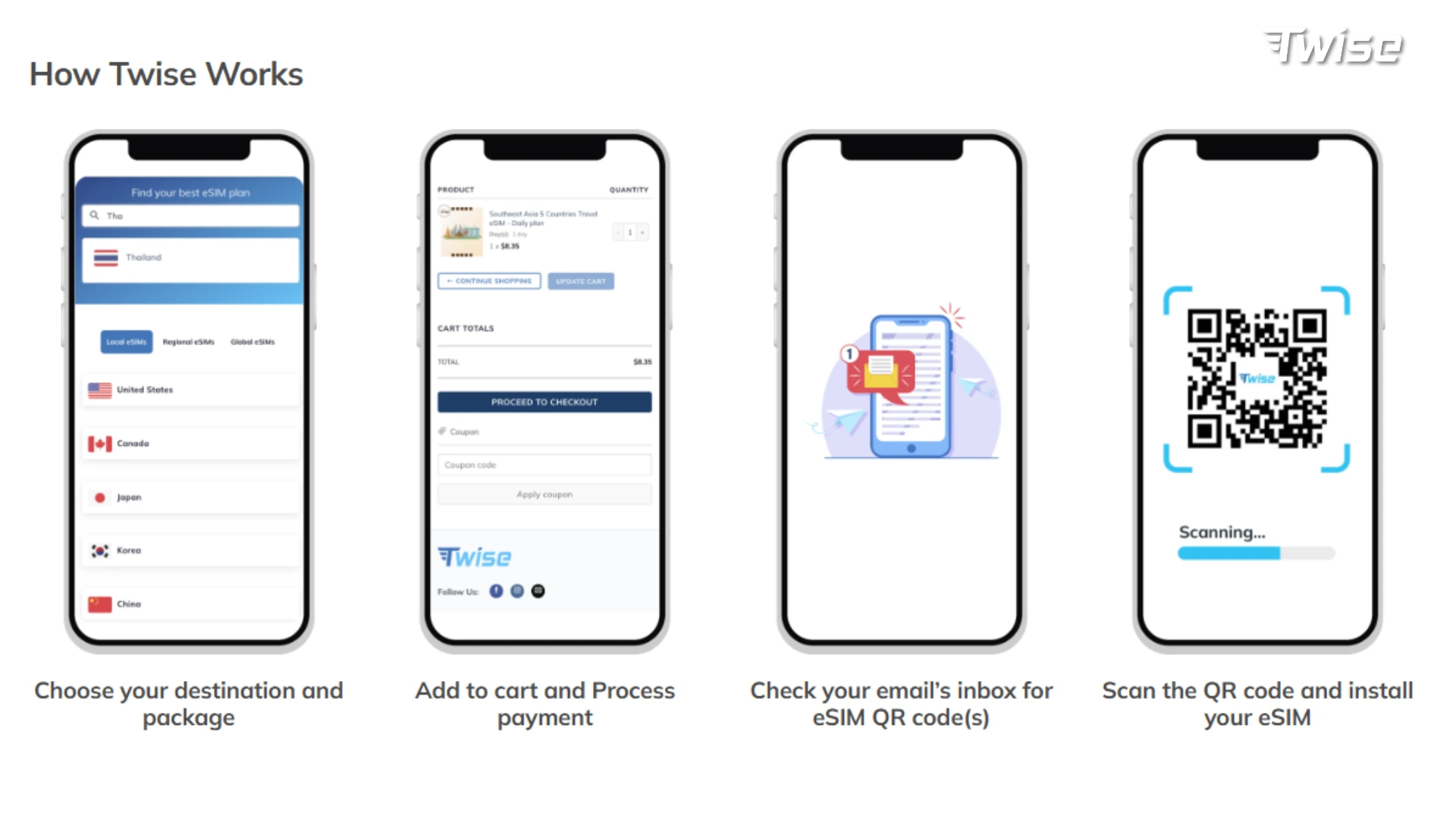
- Connect to stable Wi-Fi after arriving. Apple states that eSIM setup generally requires an internet connection.
- Open Settings → Cellular/Mobile Data → Add eSIM.
- Scan the QR code you received after purchase.
- Label the line — something clear like “Korea Data” or “Twise SKT.”
- Keep your home line clearly labeled, e.g., “Home,” so you don’t confuse the two later.
- Select Twise as Cellular Data. Apple lets you choose which active plan supplies cellular data independently of which lines are turned on.
- Apply the eSIM’s required roaming settings for the travel line specifically, following the instructions provided with your plan.
- Test data before leaving Incheon — open Naver Map, a browser, and Papago to confirm the connection works while you’re still near help if something needs adjusting.
iPhone Data Roaming Settings for Korea: What Should Be On or Off?
| Setting | Korea eSIM | Home SIM |
| Turn On This Line | On during trip | As needed |
| Cellular Data | Korea eSIM | Not selected |
| Data Roaming | Follow Korea eSIM instructions | Usually off if avoiding home roaming charges |
| Cellular Data Switching | Usually off for stricter cost control | — |
| Default Voice Line | Home line if needed | Home line |
| iMessage/FaceTime | Configure per existing account/number | Keep existing configuration where appropriate |
View all South Korea eSIM Plans
Why Cellular Data Switching deserves attention
Apple allows the iPhone to switch data between lines automatically in certain configurations. For travelers whose priority is keeping mobile data strictly on the Korea eSIM, leaving automatic switching off is usually the simpler, more predictable setup.
Don’t blindly turn off your home SIM
Keeping it active may be useful for receiving calls or texts to your home number, but your home carrier’s roaming and calling charges still apply while it’s on — check those rates separately.
One data line at a time
Even with two active lines, only one supplies cellular data at any moment. Confirming the Korea eSIM is selected is the single most common fix for “why isn’t my data working” questions.
Can You Keep Your Home SIM While Using a Korea eSIM?
Yes, on compatible Dual SIM iPhones. Your home line can remain installed while the Korea eSIM handles cellular data. Apple supports combining a physical SIM and an eSIM on compatible models, and iPhone 13 and later can support two active eSIMs in applicable configurations.
Best setup for travelers keeping their home number
- Home line: calls/SMS as required
- Korea line: mobile data
Bank verification codes
Keeping your home line available may help if your bank or service sends verification codes to that number — but Twise cannot guarantee third-party SMS or authentication delivery while traveling.
Regular calls may still cost money
Even with a Korea data eSIM installed, calls or texts made on your home line while abroad are billed under your home carrier’s roaming terms.
Will iMessage and FaceTime Work With a Korea Data eSIM?
FaceTime uses internet data. A Twise data connection can carry FaceTime calls, even though the eSIM itself doesn’t provide conventional cellular calling.
iMessage also uses internet connectivity — but which number or email address is actively registered to iMessage affects how messages are delivered, so check your existing configuration rather than assuming.
Don’t unnecessarily deregister your home number from iMessage or your Apple ID unless you’re specifically troubleshooting a delivery issue.
WhatsApp and KakaoTalk work the same way — existing accounts run over the mobile-data connection your Korea eSIM provides.
How Travelers Actually Use iPhone Data in Korea
- Incheon Airport arrival: install the Twise eSIM, check AREX/bus schedules, load the hotel address, open Naver Map.
- Seoul subway navigation: Naver Map or KakaoMap for exits, transfers, and walking directions.
- Papago translation: menus, station signage, and day-to-day communication.
- Taxi and ride coordination: internet access supports ride apps and messaging, though a data-only plan doesn’t provide a 010 phone number for direct calls.
- Accommodation and tour communication: booking apps, WhatsApp, KakaoTalk, or email.
- KTX and intercity travel: tickets, platform information, and destination navigation.
- Busan and Jeju: avoid assuming blanket coverage everywhere — keep downloaded maps, hotel addresses, reservation screenshots, and a power bank as backup.
- Family updates and emergency searches: internet messaging stays available wherever there’s a usable data connection.
iPhone Data-Saving Tips for Korea
- Turn off cellular iCloud photo backup — especially useful on fixed-data plans.
- Disable automatic App Store downloads over cellular.
- Download tickets and reservations while on Wi-Fi.
- Save accommodation addresses in Korean for taxis and navigation apps.
- Use Low Data Mode when appropriate.
- Save large video uploads for hotel Wi-Fi.
- Check your plan’s hotspot policy before relying on it — don’t assume it’s included.
What to Do If Your Korea eSIM Shows SOS or No Service on iPhone
- Confirm the Korea line is turned on.
- Confirm it’s selected under Cellular Data.
- Check Data Roaming according to the provider’s instructions.
- Toggle Airplane Mode on and off.
- Restart the iPhone.
- Check whether a carrier settings update is available — Apple recommends this during SIM/network troubleshooting.
- Move locations before assuming the eSIM is broken; underground, indoor, or congested areas can affect service temporarily.
- Check APN instructions if your plan supplied any — never invent or copy an APN from a different Korea eSIM product.
Do not delete the eSIM first. Deleting an eSIM should not be the first troubleshooting step. Contact support before removing the profile if you’re unsure whether the QR can be used again.
Korea eSIM vs. Physical SIM for iPhone
| Feature | Korea eSIM | Physical SIM |
| SIM tray swap | No | Yes |
| Keep home SIM installed | Easier on Dual SIM models | Depends on device setup |
| Digital delivery | Yes | No |
| Setup | QR/digital profile | Insert SIM |
| Phone-number availability | Product-dependent | Product-dependent |
| Carrier unlock required for another carrier | Yes | Yes |
| Best for | Compatible iPhone travelers wanting digital setup | Travelers preferring a physical SIM/local product |
View all South Korea eSIM Plans
When eSIM makes more sense
For most compatible, unlocked iPhones, an eSIM is faster to set up, avoids losing a physical SIM tray piece, and keeps your home line installed without any swapping.
When a physical SIM can still be better
An unsupported regional iPhone, a specific local phone-number requirement, or simple personal preference can all make a physical SIM the more practical choice.
Which Korea eSIM Plan Is Best for Your iPhone?
| iPhone traveler | Start with |
| Maps + messages only | Fixed data |
| 3–5 day Wi-Fi-heavy trip | Small fixed/daily plan |
| Normal sightseeing | Medium fixed/daily |
| Constant navigation/social use | Larger data |
| Heavy video use | Unlimited option |
| Doesn’t want to track GB | Unlimited |
| Needs Korean calls/SMS | Voice-enabled local product |
| Needs a 010 number | Explicit number-enabled product |
| Wants home number + Korea data | Dual-SIM data setup |
| iPhone is carrier-locked | Unlock before buying |
Once your iPhone is compatible and unlocked, compare Korea eSIM plans by trip length and data use rather than by whichever plan is cheapest on paper.
FAQs
Most compatible international iPhone models from the XS/XR generation onward support eSIM, but regional model differences exist. Check your exact device before buying.
Go to Settings → General → About → Carrier Lock. Apple states an unlocked iPhone displays No SIM Restrictions.
It depends on the product. For the current Twise local SKT unlimited plan, do not scan the QR until after you arrive in Korea.
Yes, on compatible Dual SIM iPhones. Apple allows a separate line to be selected specifically for cellular data.
Yes. FaceTime uses internet data rather than requiring the travel eSIM to provide conventional cellular calling.
More useful tips for your journey to South Korea
Korea Unlimited Data eSIM: Is It Worth It for Tourists?
SKT eSIM Korea for Tourists: Coverage, Setup, Data Plans & Alternatives
Korea Travel eSIM Guide: Local Carrier vs Travel eSIM for Tourists
