

How to Turn a Hotspot On With Travel eSIM Data
How to turn a hotspot on with travel eSIM data, first select the travel eSIM as your phone’s mobile-data line. Then enable Personal Hotspot on iPhone or Mobile/Wi-Fi Hotspot on Android. eSIM hotspot works much like hotspot with a physical SIM, but your plan must support tethering.
| Device | Basic path |
| iPhone | Settings → Personal Hotspot |
| Samsung | Settings → Connections → Mobile Hotspot and Tethering |
| Pixel/Android | Settings → Network & internet → Hotspot & tethering |
Apple, Samsung, and Google currently document these paths, but the setting itself is only half the job. The part that actually determines whether hotspot works abroad — and whether it’s cheap or expensive — is which SIM is doing the sharing.
Can You Use a Hotspot With an eSIM?
Yes. A travel eSIM can share mobile data through hotspot when the device and mobile plan support tethering.
eSIM vs. hotspot support
- eSIM = the SIM technology (a digital profile instead of a physical card)
- Hotspot = a device feature that shares that connection
- Tethering permission = a plan and carrier policy, separate from both
Why the plan matters
Google warns some carriers can limit or charge for tethering, and Apple and Samsung similarly note that hotspot availability can depend on the mobile provider. Unlimited data does not automatically mean unlimited hotspot — this is the eSIM-specific nuance that generic setup guides skip.
Before You Turn Hotspot On, Select the Travel eSIM for Mobile Data
This is the step that prevents the most expensive mistake travelers make with dual-SIM phones: hotspot connects, everything looks fine, and the laptop is actually tethering through the home carrier’s roaming line instead of the travel eSIM.
iPhone
- Settings → Cellular/Mobile Service → Cellular Data
- Select the travel eSIM
Apple confirms Personal Hotspot uses whichever line is selected here. If you haven’t set up the eSIM yet, see how to set up an eSIM on iPhone first.
Samsung Galaxy
- Settings → Connections → SIM Manager
- Verify the intended SIM/eSIM is set to supply Mobile Data
Exact wording can vary by One UI version and carrier customization.
Google Pixel / Android
Confirm the travel eSIM is selected as the mobile-data SIM before enabling hotspot — the setting location varies slightly by manufacturer, but the SIM-selection step is universal.
Why this matters internationally
A common real-world scenario: the hotspot is working perfectly, but the home carrier is quietly charging roaming fees because the home SIM — not the travel eSIM — remained selected for mobile data.
Keep the home SIM active if you still need SMS
Don’t disable your home line entirely if you still need to receive texts. Instead:
- Travel eSIM → data
- Home line → calls/SMS only
- Home-line Data Roaming → off, unless you’re intentionally using roaming
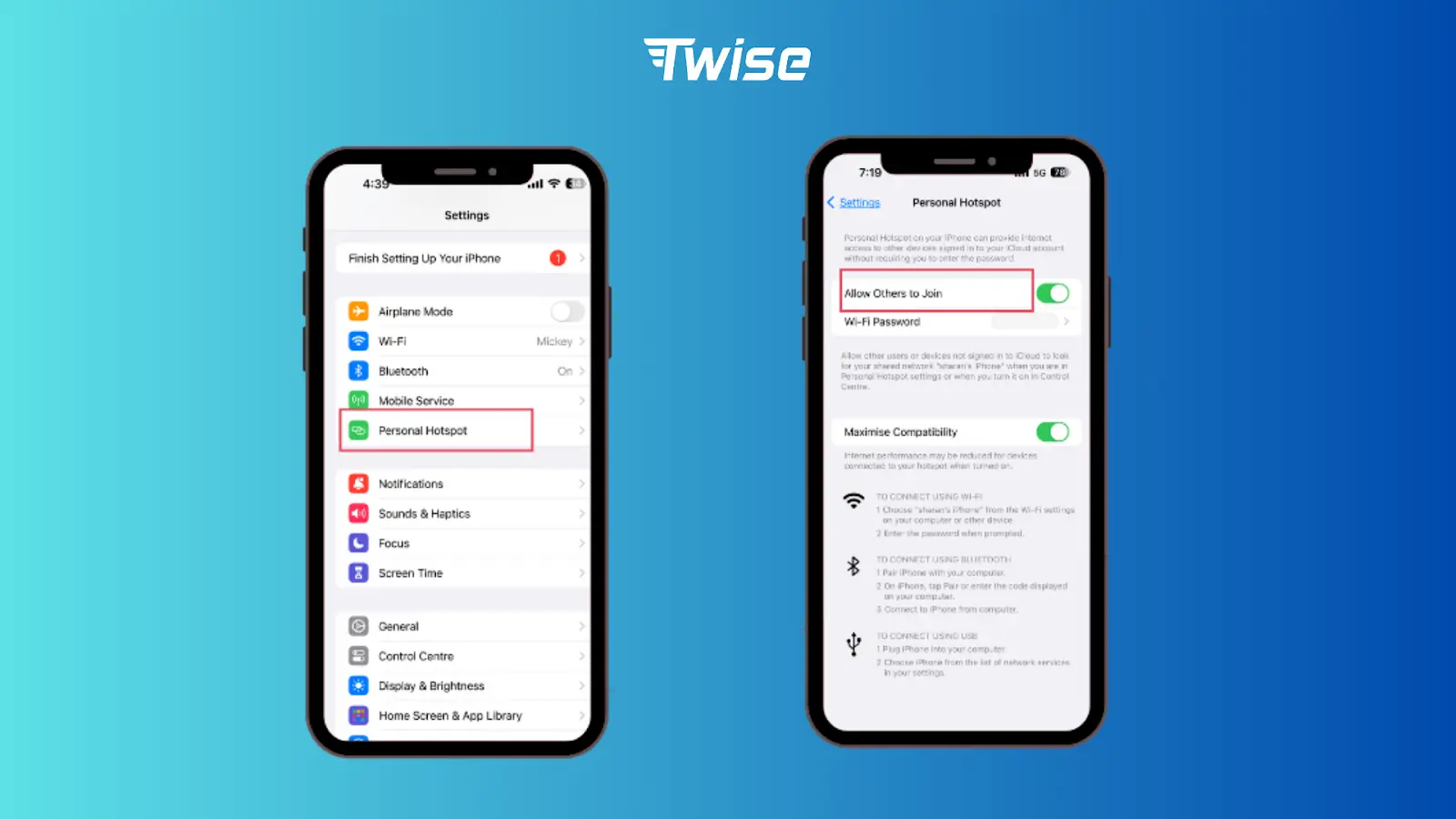
How to Turn a Hotspot On on iPhone
- Open Settings
- Tap Personal Hotspot
- Turn on Allow Others to Join where shown
- Check the Wi-Fi password
- Connect the second device
Apple’s current support documentation notes that non-family, non-same-account devices require Allow Others to Join to be turned on.
On some configurations, Personal Hotspot appears under Settings → Cellular → Personal Hotspot instead.
Instant Hotspot lets nearby Apple devices signed into the same Apple ID connect automatically — useful, but secondary to the main setup.
If another device can’t see the iPhone, check Wi-Fi/Bluetooth on the connecting device and distance between devices before assuming the eSIM has failed. If Personal Hotspot is missing entirely while Cellular Data works, Apple recommends contacting the carrier directly.
How to Turn a Hotspot On on Samsung Galaxy
Settings → Connections → Mobile Hotspot and Tethering → Mobile Hotspot → On
Samsung reconfirmed this path in its most recent support guidance.
From the same menu you can:
- Change the hotspot name and password
- Choose 2.4 GHz (broader device compatibility) or 5 GHz (better performance)
- Set an automatic timeout to save battery
A hotspot toggle that turns on successfully doesn’t confirm the travel plan allows tethering — that’s determined by the carrier, not the phone setting.
How to Turn a Hotspot On on Google Pixel and Android
Settings → Network & internet → Hotspot & tethering → Wi-Fi hotspot
Google currently documents this path. A faster route: swipe down for Quick Settings → Hotspot.
If hotspot won’t start, check Data Saver — Google notes Wi-Fi tethering may require Data Saver to be turned off. Other Android brands (Motorola, Xiaomi, Oppo, etc.) may use slightly different menu labels for the same feature.
How to Connect a Laptop, Tablet, or Another Phone
Wi-Fi hotspot — best for most travelers
- Enable hotspot
- Open Wi-Fi settings on the second device
- Select the phone’s network
- Enter the password
- Test a browser page
USB tethering
Best for longer laptop sessions where supported. Google documents Android USB tethering, though Mac computers can’t use Android USB tethering through that standard process.
Bluetooth tethering
A slower backup option, useful only for light, occasional use.
| Method | Best for | Trade-off |
| Wi-Fi | Most travelers | Battery drain |
| USB | Laptop / longer session | Cable/device compatibility |
| Bluetooth | Backup/light use | Slower |
How to Check Which SIM Your Hotspot Is Using
iPhone: Personal Hotspot uses whichever line is selected for Cellular Data.
Android: Check the active/default Mobile Data SIM before starting hotspot.
The 30-second travel test
- Turn phone Wi-Fi off
- Open a webpage on the phone
- Confirm the travel eSIM is showing as the data line
- Turn hotspot on
- Connect the second device
This quick check is what stops a laptop from accidentally running up expensive home-carrier roaming charges.
Why Is My eSIM Hotspot Connected but Has No Internet?
Work through this order:
- Check mobile data on the phone itself — if the phone has no internet, hotspot can’t fix that
- Confirm the travel eSIM is the active data line
- Check Data Roaming settings against the specific eSIM’s instructions
- Confirm the plan supports hotspot at all
- Check APN settings if the provider specifies one
- Turn hotspot off and back on
- Toggle Airplane Mode
- Restart both the phone and the connecting device
- On Android, check Data Saver
- Don’t delete the eSIM to “reset” it — especially if the QR code or profile can’t be reinstalled
Why Is Personal Hotspot or Mobile Hotspot Missing?
- The carrier or plan doesn’t enable tethering
- Cellular data isn’t configured correctly
- APN or carrier settings need adjustment
- Device management or software restrictions are blocking it
Direct answer: A missing hotspot option is a different problem than a hotspot that connects but has no internet. Check carrier and plan support before assuming the travel eSIM itself is defective.
How Much Data Does Hotspot Use?
Hotspot itself doesn’t add a special extra data charge. Data use comes entirely from what the connected devices download or upload.
Light use: email, hotel bookings, web browsing, maps, messaging
Heavy use: video calls, streaming, cloud storage sync, OS updates, video uploads
Before connecting a laptop, pause background syncing — Windows Update, macOS updates, OneDrive, iCloud, Dropbox, Google Drive, and photo backups can all silently consume a day’s allowance.
- Fixed-data plans: all connected devices draw from the same shared allowance
- Daily plans: one large laptop session can use the daily high-speed allowance early
- Unlimited plans: check the fair-use and tethering policy — “unlimited” and “unlimited hotspot” aren’t always the same thing
Not sure what allowance you actually need? See how much eSIM data do I need?
When Hotspot Is Useful During International Travel
- Airport arrival: a companion needs internet for hotel or train details before their own connection is active
- Hotel check-in: Wi-Fi isn’t available until after check-in
- Maps and navigation: share temporary access for a second traveler
- Ride-hailing or taxis: the other traveler needs trip details
- Tickets: retrieving a booking confirmation from a laptop or tablet
- Translation: sharing data briefly with another device
- Payment or banking: useful for avoiding unknown public Wi-Fi, subject to your bank’s own security requirements
- Messaging: contacting a host, driver, or guide
- Remote work: a temporary fallback — not a substitute for a dedicated connection on critical work days
- Low-signal areas: hotspot shares the connection you already have; it doesn’t improve cellular reception
How to Reduce Hotspot Battery Drain
- Plug into a charger or power bank while tethering — Google recommends this where practical
- Disconnect devices that aren’t actively in use
- Turn hotspot off once you’re done
- Use an automatic timeout (Samsung supports this natively)
- Avoid covering the phone with clothing or bedding while it’s charging and tethering, since heat builds up faster
How to Use Hotspot Safely While Traveling
- Always use a password — don’t run an open hotspot, even though some Android devices technically allow it
- Periodically check which devices are connected
- Turn hotspot off when you’re finished
- Avoid obvious or default passwords
- Use the strongest security mode your devices support
Does Twise eSIM Support Hotspot?
Many Twise eSIM plans explicitly support hotspot sharing, but hotspot rules should always be checked on the exact product page rather than assumed for every plan.
| Twise eSIM | Hotspot |
| South Korea Standard Data | Supported |
| Japan KDDI Daily | Supported |
| Japan IIJmio Fixed Data | Supported |
| World 39 Countries Standard Data | Supported |
What to check before buying for hotspot use
- Hotspot support
- Total or daily data amount
- Speed after the data limit is reached
- Fair-use policy
- Validity period
- Top-up or renewal options
Data-only plans can still share internet — “data-only” means no conventional voice or SMS, not no hotspot.
Travelers who plan to share data with a laptop or companion can compare Twise travel eSIM plans and check each product’s hotspot, allowance, validity, and speed policy before buying.
Hotspot vs. Pocket Wi-Fi vs. Separate eSIMs
| Option | Best for | Main limitation |
| Phone hotspot | Temporary sharing | Battery/data use |
| Separate eSIMs | Independent travelers | Separate purchases |
| Pocket Wi-Fi | Groups/heavy sharing | Extra device to carry |
| Hotel/public Wi-Fi | Backup | Availability/security |
| Home roaming | Emergency fallback | Can be expensive |
- One laptop or one companion: phone hotspot is usually enough
- Family or group: compare pocket Wi-Fi or individual eSIMs — see eSIM vs. pocket Wi-Fi
- Remote work: consider a second connection when connectivity is mission-critical
What to Do When Hotspot Fails While Traveling
- Phone has no internet → fix mobile data/eSIM first
- Phone has internet but the laptop doesn’t → troubleshoot hotspot settings, password, or device compatibility
- Hotspot option is missing → check carrier/plan support
- Speed suddenly drops → check your data allowance and fair-use policy
- Battery is nearly dead → disconnect nonessential devices
- Nothing works → fall back to airport/hotel Wi-Fi, a second eSIM, home roaming, or pocket Wi-Fi
eSIM Hotspot Checklist Before You Fly
- Confirm tethering is supported on your plan
- Confirm your device is unlocked and eSIM-compatible
- Select the travel eSIM for mobile data
- Read the plan’s Data Roaming instructions
- Test internet on the phone itself
- Turn on hotspot
- Test the laptop or tablet connection
- Set a strong password
- Pause cloud sync and software updates
- Check data allowance and fair-use limits
- Pack a charger or power bank
- Keep a backup connectivity option in mind
FAQs
Yes. If the phone and mobile plan support tethering, eSIM mobile data can be shared by hotspot just like physical-SIM data.
Go to Settings → Personal Hotspot and enable sharing. On Dual SIM iPhones, first verify the travel eSIM is selected for Cellular Data.
It uses the line selected for cellular data when Dual SIM is configured.
No. Hotspot restrictions and fair-use rules can be separate from the main data allowance.
Yes, when the phone and plan support tethering.
More useful tips for your journey
Can I recharge or top up my eSIM?
Should Data Roaming Be On or Off? Travel eSIM and iPhone/Android Guide
Step-by-Step Guide to Fix iPhone SOS Issue
