

Full Signal, Zero Internet: Daniel’s SoftBank eSIM Problem in Japan
Aug
Warning: Seeing signal bars does not always mean your Japan eSIM is ready for mobile data. Daniel discovered this shortly after trying to get online with his SoftBank SIM. Check APN Japan eSIM Now!
Daniel had just arrived in Japan and inserted his SoftBank eSIM into his phone.
At first, everything seemed normal.
Within a short time, signal bars appeared at the top of his screen, suggesting that the SIM had successfully connected to the SoftBank network. Daniel expected to open Google Maps, check his hotel information, and start navigating from the airport.
But nothing loaded.
There was no working mobile internet, even though his phone clearly showed a network signal.
Daniel contacted Twise support, and the troubleshooting process began with two important settings: Data Roaming and APN configuration.
Why Daniel’s SoftBank eSIM Had Signal but No Internet
Daniel initially assumed that seeing signal bars meant his SIM had been fully activated and configured.
However, network registration and mobile data access are not exactly the same thing.
His phone could recognize the SIM and connect to the available network, which explained the signal bars. But the device still needed the correct mobile data configuration before it could access the internet.
Twise support first asked Daniel to check whether Data Roaming was enabled.
This is an important setting for some travel eSIM configurations. If Data Roaming is turned off, a eSIM may still display signal while mobile data remains unavailable.
Daniel checked the setting and confirmed that Data Roaming was already on.
That meant the team needed to look one step deeper.
The next likely cause was the APN.
Daniel Checked Data Roaming First
Twise asked Daniel to open his mobile network settings and confirm that Data Roaming was enabled for his SoftBank SIM.
On iPhone, the usual path is:
Settings → Cellular or Mobile Service → SoftBank eSIM → Data Roaming
On Android, depending on the phone model:
Settings → Connections or Network & Internet → Mobile Networks → Data Roaming
Daniel confirmed that Data Roaming was already switched on.
He waited for the phone to reconnect, but the internet still did not work.
Since the eSIM had signal and Data Roaming was enabled, Twise support moved to the next troubleshooting step: checking the APN.
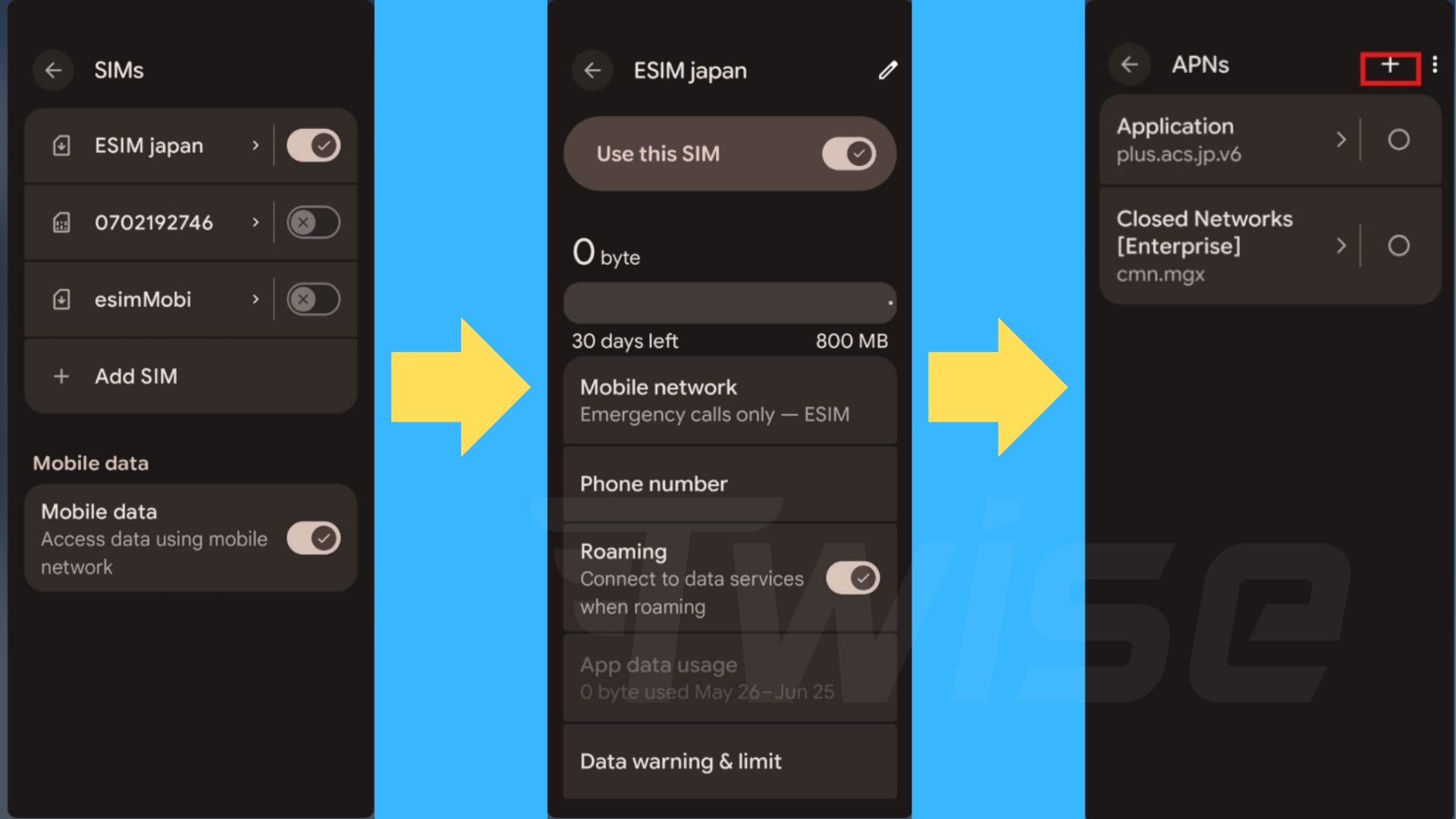
The APN Was the Missing Piece – APN Japan eSIM
The APN, or Access Point Name, tells a phone how to connect to the mobile data service associated with a eSIM.
When Daniel opened his APN settings, the configuration did not match the instructions provided for his SoftBank eSIM.
That explained why his situation was confusing.
His phone could see the network.
His SoftBank eSIM could register with it.
But the phone did not have the correct configuration required to establish a working internet connection.
Twise guided Daniel through manually setting the APN.
On iPhone, if manual APN editing is available, the setting can generally be found under:
Settings → Cellular or Mobile Service → SoftBank eSIM → Cellular Data Network
On Android, Daniel could access it through a path similar to:
Settings → Connections → Mobile Networks → Access Point Names
The exact wording varies depending on the device.
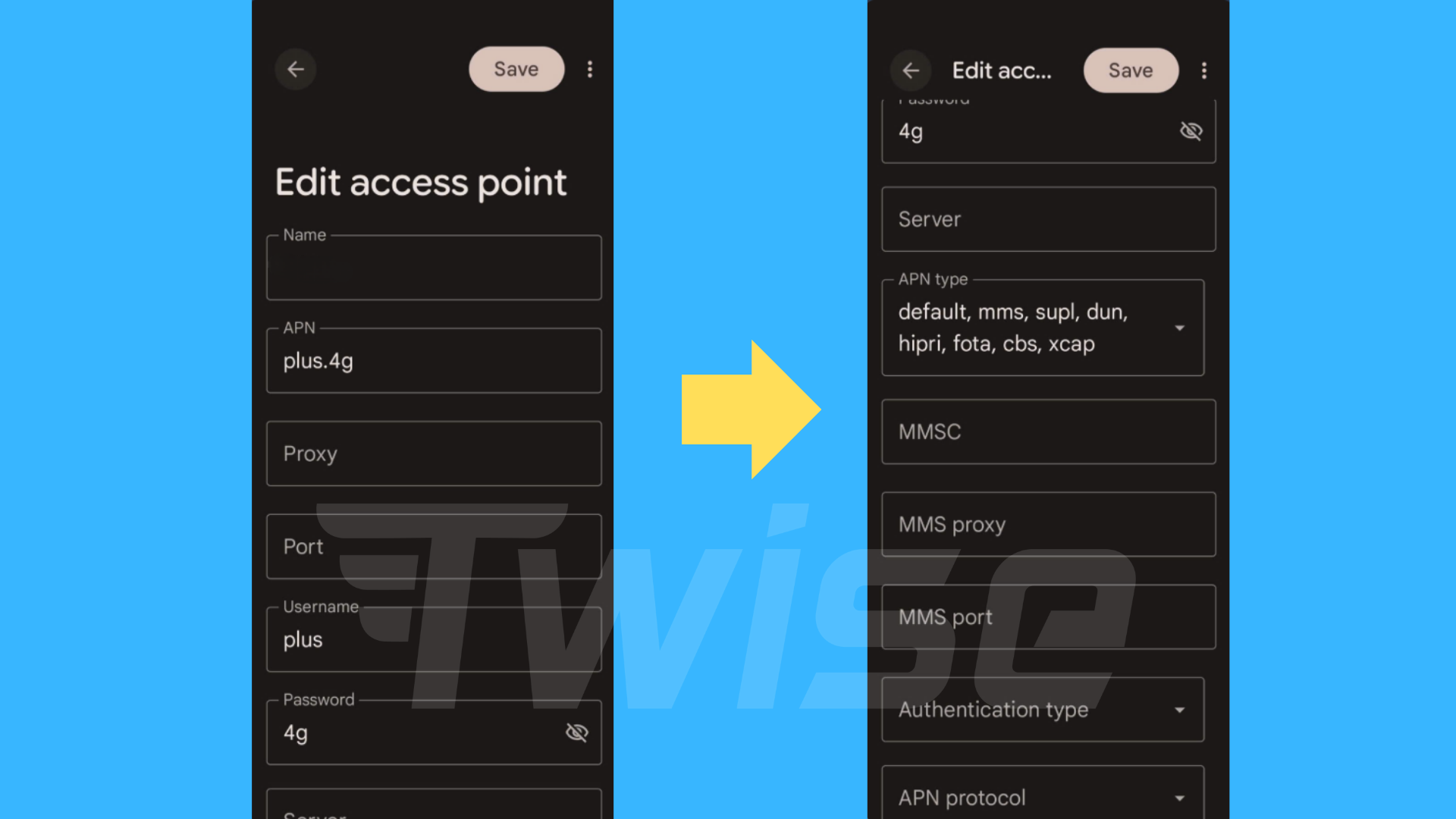
How Daniel Manually Set Up the APN
Rather than searching online for a generic SoftBank APN, Daniel followed the specific APN instructions provided for his Twise eSIM.
This distinction was important because different eSIM products can use different configurations even when they operate through the same network.
Daniel entered the APN exactly as shown in his instructions.
If additional information such as a username, password, authentication setting, or other network parameter is included with an eSIM, those values should also be entered exactly as provided.
After saving the configuration, Daniel made sure the newly configured APN was selected.
He then briefly turned Airplane Mode on and off so his phone could reconnect to the network using the updated settings.
This time, mobile data appeared.
Daniel opened Google Maps again, and it loaded normally.
His SoftBank SIM had finally gone from showing signal to providing an actual internet connection.
Other Details Daniel Checked
Once the connection was restored, Daniel also confirmed that his SoftBank eSIM was selected as the phone’s mobile data line.
This can be particularly important on Dual eSIM phones.
A traveler may have both a home eSIM and a Japan SeIM enabled at the same time. Even when the Japan SIM displays strong signal, the phone could still be configured to use the home eSIM for cellular data.
Daniel therefore checked that his SoftBank eSIM was selected for mobile data and that automatic cellular-data switching would not unexpectedly move the connection back to his home line.
His device was also carrier-unlocked and compatible with the eSIM, ruling out another common source of connectivity problems.
Avoiding Home-eSIM Roaming Charges
After Daniel’s SoftBank eSIM started working, he reviewed his Dual eSIM settings one more time.
He kept Data Roaming enabled for the SoftBank eSIM as required by his setup while turning Data Roaming off for his home eSIM.
He also selected the SoftBank eSIM as his cellular data line.
Daniel kept his home number active because he might still need to receive verification messages during his trip, but he prevented that eSIM from using mobile data.
This helped him avoid accidentally using his home carrier’s international roaming service while traveling around Japan.
The Lesson From Daniel’s Experience
Daniel’s problem looked unusual at first.
His phone had signal bars, so it appeared that everything was working.
But signal does not necessarily mean mobile data is correctly configured.
Checking Data Roaming was the first step. Once Daniel confirmed that it was already enabled, checking the APN revealed the actual issue.
After entering the correct APN information, his mobile internet started working and he could continue using maps, transportation apps, translation tools, hotel messages, and booking information during his trip.
Daniel’s experience offers a simple troubleshooting order for other travelers:
SoftBank signal but no internet? Check Data Roaming first. If it is already enabled, check the APN next.
If the APN information is missing or you are unsure what should be entered, contact Twise before randomly changing network settings.
This mirrors the reference case study’s approach of turning one customer’s technical problem into a practical lesson other travelers can follow.
Why Choose Twise for Your Japan SoftBank eSIM

Daniel’s experience also showed why technical support matters when buying a travel eSIM. A connectivity problem that seems complicated may sometimes come down to one device setting, but travelers need clear instructions to identify it quickly.
Clear APN instructions: Twise provides the configuration information customers need for their specific SIM, helping travelers avoid relying on random APN settings found online.
Fast troubleshooting support: When Daniel had signal but no internet, the troubleshooting process followed a logical order—Data Roaming first, APN second—rather than asking him to repeatedly reset unrelated phone settings.
Reliable network partnership: Twise provides Japan eSIM options using established local network infrastructure such as SoftBank, giving travelers practical mobile connectivity during their stay.
Travel-focused support: Connectivity problems often happen when travelers need data most, such as after landing, finding their hotel, checking a train route, or contacting a driver. Twise support helps customers resolve setup issues so they can get back online.
Guidance beyond installation: Support does not end simply because the phone recognizes the SIM. Twise can also help customers review mobile data selection, roaming settings, APN configuration, and other connection-related settings.
Support when something does not look right: If your SoftBank SIM displays signal but still cannot access the internet, Twise can help identify whether the problem comes from Data Roaming, APN configuration, device settings, or another technical issue.
Choose your Japan SoftBank eSIM from Twise and travel with clear setup guidance and technical support available when your connection needs troubleshooting.