

Unlock iPhone for Use Abroad: Best Ways to Check Before Travel
To unlock iPhone for use abroad, first check Settings > General > About > Carrier Lock. If it says No SIM Restrictions, the iPhone can generally use SIM cards and eSIMs from other carriers. If another message appears, contact the carrier that originally sold or financed the device because Apple cannot remove a carrier lock. Check this before purchasing a travel plan, especially with a used, imported, or contract phone. An unlocked status does not automatically confirm eSIM compatibility, supported network bands, or destination coverage, so verify those separately while you still have reliable Wi-Fi and access to carrier support.
What does it mean to Unlock Iphone for use abroad?
An unlocked iPhone can activate mobile service from carriers other than the network that originally sold it. This applies to both physical SIM cards and eSIMs.
A locked iPhone may still work normally with:
- The original carrier
- The original carrier’s international roaming package
- Wi-Fi
- Apps that do not require another cellular plan
However, it may reject a local SIM or travel eSIM issued by an unrelated provider. This often becomes a problem only after arrival, when the traveler attempts to install a cheaper destination plan.
A carrier lock is different from several other restrictions:
| Restriction | What it controls | Does carrier unlocking fix it? |
|---|---|---|
| Carrier lock | Which mobile networks can activate service | Yes, after the original carrier approves the unlock |
| SIM PIN | Access to a specific physical SIM or eSIM | No, the correct PIN or PUK is required |
| iPhone passcode | Access to the device | No |
| Activation Lock | Ownership protection linked to an Apple Account | No |
| eSIM incompatibility | Whether the hardware and regional model support eSIM | No |
| Network-band limitation | Which LTE and 5G frequencies the phone supports | No |
| Provider coverage | Where a mobile plan can connect | No |
Only the original carrier can authorize a carrier unlock. Apple documents this clearly in its official iPhone unlocking guidance.
Be cautious with websites or shops claiming that they can instantly bypass a carrier lock for any iPhone. A legitimate unlock is recorded in the carrier and Apple activation systems. Changing a SIM card, resetting network settings, installing another eSIM, or paying for a software tool does not replace carrier authorization.
3 Ways to check if your iPhone is unlocked
There are three practical self-check paths: test another SIM, inspect Settings, or verify the device through its identifiers. Contacting the carrier provides final confirmation when those checks are unclear.
The fastest method is checking Carrier Lock in Settings. Testing another carrier’s SIM provides the strongest real-world confirmation.
Use a different SIM card
Insert an active physical SIM from a carrier unrelated to the original provider.
Follow these steps:
- Turn off the iPhone.
- Remove the current SIM.
- Insert an active SIM from another carrier.
- Turn the phone back on.
- Allow several minutes for activation.
- Check whether the carrier name and signal bars appear.
- Make a call or use mobile data if the test SIM includes service.
If the new SIM connects successfully, the phone is likely unlocked.
A locked device may display messages such as:
- SIM Not Supported
- Invalid SIM
- SIM Failure
- Activation Required
- The SIM card inserted in this iPhone does not appear to be supported
Do not conclude that the iPhone is locked based only on “No Service” or “SOS.” The test SIM may be inactive, lack coverage, require registration, or use unsupported network bands.
This method also has a major limitation for recent US-market iPhones that have no physical SIM tray. Those models must be tested through Settings or by attempting to activate another carrier’s eSIM.
If you are buying a used phone, ask the seller to demonstrate activation with a different carrier. A photo of signal bars alone is weak evidence because it may show the original carrier or a non-working SIM.
Checking through settings
For an iPhone running a current version of iOS:
- Open Settings.
- Tap General.
- Select About.
- Scroll to Carrier Lock.
- Read the status beside it.
The possible result that matters is:
No SIM Restrictions
This means the iPhone is recognized as unlocked for use with other carriers.
If the field displays a carrier restriction, another message, or no clear result, contact the original provider. Restarting the phone or installing the latest iOS update may refresh recently completed unlock information.
The wording can differ with the device language. In some regions, Apple may label the field Network Provider Lock instead of Carrier Lock.
This check takes less than a minute and should be completed before purchasing any travel eSIM. It is particularly important when the phone was:
- Purchased with monthly installments
- Received through a carrier promotion
- Bought second-hand
- Imported from another country
- Replaced through insurance
- Previously used on a business account
A factory reset does not normally remove a legitimate carrier lock. Do not erase the iPhone merely to perform an initial check.
Verifying with IMEI
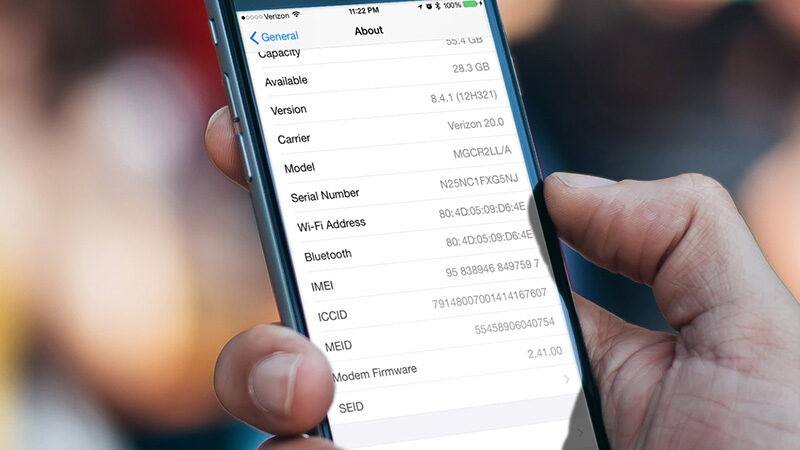
The IMEI is a unique identifier used by carriers to identify a mobile device. It can help a carrier confirm the phone’s model, account history, lock eligibility, and whether it has been reported lost or stolen.
Find the IMEI through:
Settings > General > About > IMEI
You can also dial:
*#06#
Some Dual SIM models display two IMEIs. An eSIM-compatible device may also show an EID.
Apple explains additional ways to locate the IMEI, EID, and serial number, including through the original packaging, Finder, the Apple Devices app, and the Apple Account device list.
An IMEI does not visibly contain a simple “locked” or “unlocked” label that a traveler can decode. It must be checked through a reliable carrier or authorized support process.
Avoid public IMEI-checking websites that:
- Request unnecessary personal information
- Demand payment before showing basic results
- Promise to unlock any device
- Claim they can remove Activation Lock
- Ask for an Apple Account password
- Provide no company identity or privacy policy
Do not post the full IMEI, EID, or serial number in a marketplace listing or public forum. When buying second-hand, the seller can partially obscure the identifier in screenshots and reveal it privately during the final verification.
Contacting your carrier
Contacting the original carrier is the definitive method when Settings does not show a clear result or the iPhone still rejects another plan.
Ask the carrier:
- Is this iPhone currently network-unlocked?
- Is it eligible for unlocking?
- Is there an unpaid device balance?
- Does a minimum active-service period apply?
- Is the phone connected to a lost or stolen report?
- Must the account owner submit the request?
- How long will the unlock take?
- Will the carrier send confirmation?
- Does the phone require reconnection or reactivation afterward?
Carriers may require:
- A fully paid device
- An account in good standing
- Completion of a minimum service period
- Proof of purchase
- Identity verification
- The account holder’s permission
- Removal of fraud or loss reports
Submit the request several days before departure. Apple notes that a carrier may take a few days to complete it.
After approval:
- Connect the iPhone to Wi-Fi.
- Restart it.
- Open Settings > General > About.
- Confirm that Carrier Lock shows No SIM Restrictions.
- Test another carrier’s SIM or eSIM if available.
Apple cannot approve the unlock on the carrier’s behalf. If the phone was purchased second-hand and the original account holder is required, the seller may need to submit the request.
How to check if your iPhone is unlocked for eSIM
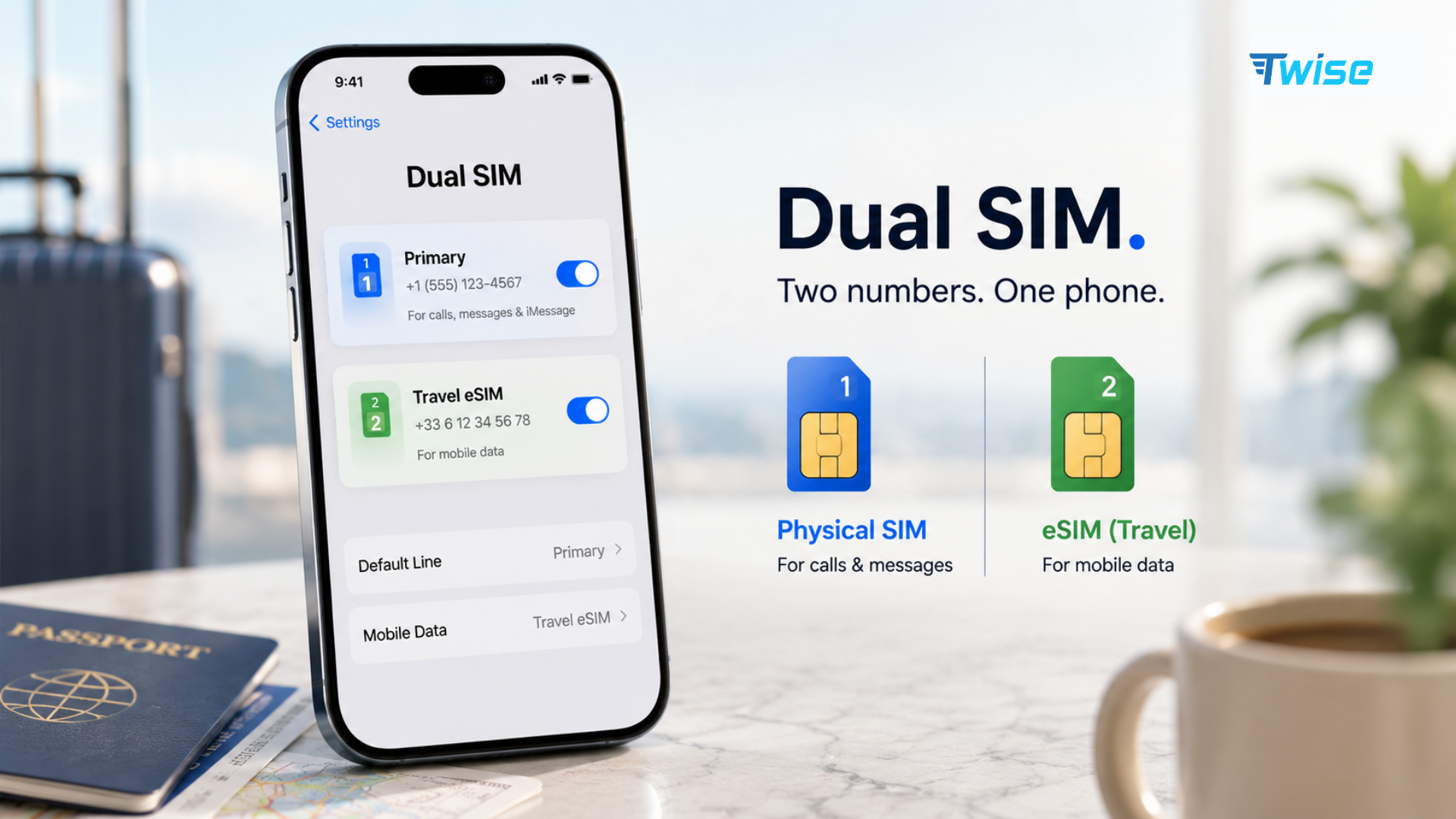
An iPhone must meet two separate requirements to use a travel eSIM:
- The device must support eSIM.
- It must be unlocked for use with another carrier.
To check eSIM support:
- Open Settings > Cellular or Mobile Service.
- Look for Add eSIM or Set Up Cellular.
- Open Settings > General > About.
- Look for an EID.
- Confirm that Carrier Lock says No SIM Restrictions.
- Check the exact model and original sales region.
A practical compatibility check looks like this:
| Check | Compatible result | What a different result may mean |
|---|---|---|
| Carrier Lock | No SIM Restrictions | The phone may still be tied to the original carrier |
| Add eSIM | Menu option appears | The model, region, software, or policy may not support eSIM |
| EID | EID is listed | The phone may not contain enabled eSIM hardware |
| Model region | Region supports eSIM | Some regional models have different SIM configurations |
| Test installation | Another provider’s plan installs | Lock, plan, Wi-Fi, or activation details may be causing failure |
Explore Compatible Travel Plans
Apple states that travelers need an iPhone XS, XS Max, XR, or later for general travel eSIM use, although regional exceptions apply. The phone must be unlocked and connected to Wi-Fi or a hotspot during installation. See Apple’s current international eSIM travel guidance.
A visible Add eSIM menu does not prove that every plan will work. Installation can still fail because:
- The QR code has already been used
- The plan was issued for another device
- Wi-Fi is unstable
- The activation code is incomplete
- The device has reached an active-line limit
- The provider does not support that model
- The plan cannot be installed from the current country
- The iPhone was purchased in a region with different eSIM rules
If you are traveling to the United States, compare USA plans only after confirming the lock status. Travelers heading to Japan should likewise review Japan connectivity options against the trip length, data needs, local-number requirements, and device compatibility.
Do not delete a failed eSIM as the first troubleshooting step. Some QR codes are valid for one installation only, and the provider may need to issue a replacement.
Why choose Holafly eSIM for your unlocked iPhone
Holafly is the provider promoted in the referenced competitor article. It is not affiliated with Twise, and this heading should not be treated as a Twise recommendation.
When comparing Holafly with any other provider, evaluate the actual plan rather than relying on general branding. Check:
- Destination coverage
- Data allowance
- Fair-use or speed-reduction policy
- Hotspot restrictions
- Plan validity
- Activation timing
- Phone number availability
- Voice and SMS inclusion
- Top-up options
- Refund conditions
- Customer support availability
An unlimited data plan may still include network-management rules or a daily high-speed threshold. A data-only plan may support WhatsApp, FaceTime, and other internet calls but not conventional calls through the Phone app.
Twise offers destination-based connectivity for unlocked, compatible devices. Available plans should be compared using the same operational criteria, particularly the underlying network, included services, activation instructions, and hotspot policy.
FAQs
Plans that may interest you
Once the iPhone is confirmed as unlocked and eSIM compatible, compare plans based on the destination and how the phone will actually be used.
For maps, messaging, ride-hailing, translation, and hotel communication, a fixed data allowance may be sufficient. Video calls, cloud uploads, streaming, and hotspot sharing require substantially more data.
Before purchasing, check:
- Covered countries
- Underlying carrier
- Data allowance
- Validity period
- Activation trigger
- Data roaming requirement
- Hotspot policy
- Calls and SMS
- Local number availability
- Speed restrictions
- Top-up options
- Installation and refund rules
Install the plan over stable Wi-Fi before departure when permitted. Label it clearly, select it for cellular data, and disable data roaming on the home line unless you intentionally want to use home-carrier roaming.
