

How Much Data Does YouTube Use? 480p, 720p, 1080p & Travel Data Tips
YouTube data usage depends almost entirely on video quality. At 480p, expect roughly 500–700MB per hour. At 720p, that climbs to 1–2.7GB per hour. At 1080p, a single hour of video can consume 2.5–4GB. Travelers with limited eSIM plans should avoid leaving YouTube on Auto quality — on a strong 5G signal, Auto can silently jump to 1080p or higher without any visible notification.
How Much Data Does YouTube Use Per Hour?
| YouTube quality | Data per minute (approx.) | Data per hour (approx.) | Travel recommendation |
| 144p | ~0.5–1.5MB | ~30–90MB | Emergency viewing only; very poor quality |
| 240p | ~1.5–3MB | ~100–200MB | Acceptable for audio-style viewing |
| 360p | ~4–7.5MB | ~250–450MB | Good for data saving on phone |
| 480p | ~8–12MB | ~500–700MB | Best balance for phone screens |
| 720p | ~17–45MB | ~1–2.7GB | Use carefully on limited plans |
| 1080p | ~42–67MB | ~2.5–4GB | Wi-Fi or high-data plans only |
| 1440p / 2K | ~75–135MB | ~4.5–8GB | Avoid on travel data |
| 4K | ~92–335MB | ~5.5–20GB+ | Wi-Fi only |
Important notes on these estimates
These numbers are practical planning ranges, not exact guarantees. Actual usage varies based on the video’s codec (newer codecs like AV1 compress more efficiently), frame rate (60fps uses more data than 30fps), video content type (animated or static scenes compress better than fast action), your device, and network behavior. YouTube may also preload upcoming video segments and serve ads — both of which add to total data consumption. A video watched through a hotspot-connected laptop often uses more data than the same video on a phone, because the laptop may request higher quality automatically.
How YouTube Data Compares to Other Travel Apps
For travelers on limited eSIM plans, understanding where YouTube sits relative to essential travel apps helps with data prioritization.
| App or task | Approximate data | Traveler priority |
| WhatsApp text message | ~1–5KB per message | Essential |
| Google Maps route (downloaded) | ~5–10MB per area | Essential |
| Google Maps live navigation | ~5–10MB per hour | Essential |
| Translation app | ~1–5MB per session | Essential |
| Rideshare app (Grab, Uber) | ~2–5MB per trip | Essential |
| Email with attachments | ~1–5MB per session | Useful |
| YouTube Music (audio) | ~30–60MB per hour | Optional |
| YouTube 480p video | ~500–700MB per hour | Optional |
| YouTube 720p video | ~1–2.7GB per hour | Use on Wi-Fi |
| YouTube Shorts scrolling (30 min) | ~300MB–1GB+ | Easy to overuse |
| YouTube on laptop via hotspot | Varies, often HD | Use carefully |
YouTube video — even at modest quality — uses more data per hour than most essential travel apps combined. Maps, messaging, rideshare, translation, and email together rarely exceed 50–100MB in a typical travel day. A single hour of 720p YouTube can use more than a full day of everything else.
Why YouTube Data Usage Changes So Much
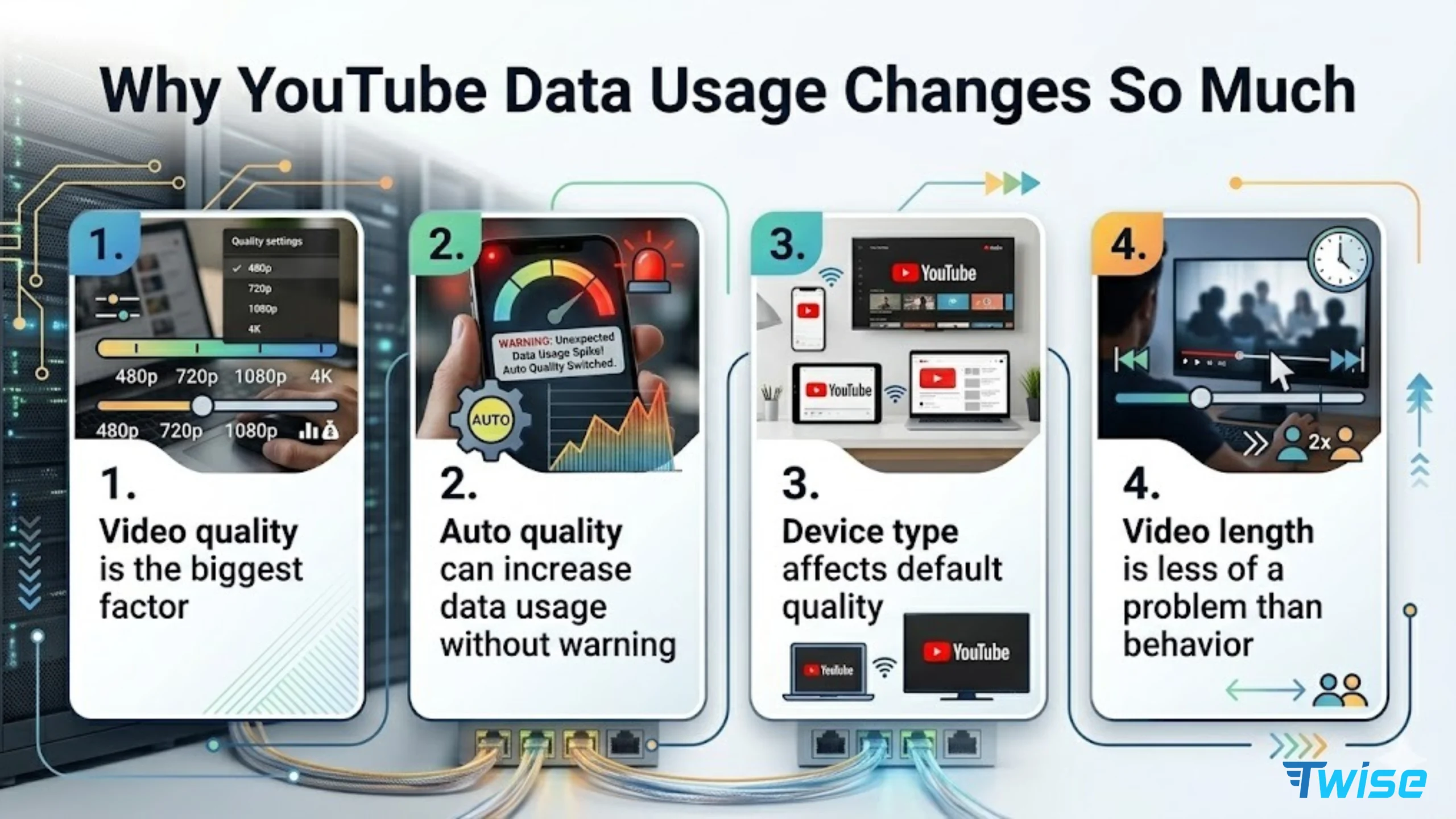
Video quality is the biggest factor
Resolution determines how much data is transmitted per second. At 480p, your phone receives roughly 8–12MB per minute of video data. At 1080p, the same minute of video delivers five to six times more pixel information. The difference between 480p and 1080p is not subtle — it is the difference between ~600MB per hour and ~3GB per hour.
On a phone screen, 480p is often visually acceptable. The jump to 720p is noticeable but rarely necessary while walking around a city, using transit, or watching short clips. 1080p on a 6-inch phone screen provides marginal visible improvement over 720p but uses significantly more data.
Auto quality can increase data usage without warning
YouTube’s Auto quality setting raises or lowers resolution based on your network conditions. On a strong 5G eSIM connection, Auto may push quality to 1080p or higher — which looks great but drains a limited data plan quickly. YouTube also labels this behavior in its own settings: “Higher picture quality” uses more data; “Data saver” uses lower quality. Many travelers do not realize Auto is the default until they check remaining data mid-trip.
Device type affects default quality
Phones generally request lower quality than tablets. Tablets request lower quality than laptops. A laptop connected to a phone hotspot can request 1080p or higher automatically, consuming multiple gigabytes in a single session without any manual input from the user.
Video length is less of a problem than behavior
One 5-minute video rarely causes a data crisis. The real drain comes from autoplay, Shorts scrolling, children watching continuously, background streaming during airport delays, and long hotel downtime sessions. The mechanism is not one video — it is twenty videos watched without noticing.
How Long Will 1GB, 3GB, 5GB, or 10GB Last on YouTube?
| Data available | At 360p | At 480p | At 720p | At 1080p |
| 1GB | ~2–4 hours | ~1.5–2 hours | ~20–60 min | ~15–25 min |
| 3GB | ~6–12 hours | ~4–6 hours | ~1–3 hours | ~45–75 min |
| 5GB | ~10–20 hours | ~7–10 hours | ~2–5 hours | ~1.5–2 hours |
| 10GB | ~20–40 hours | ~14–20 hours | ~4–10 hours | ~2.5–4 hours |
| Unlimited / high-data | Flexible | Flexible | Regular viewing viable | Viable if needed |
These are rough planning estimates. In practice, no travel plan should be used entirely on YouTube. Reserve data for maps, rideshare, translation, messaging, and emergency contact — these apps matter when you are outside Wi-Fi areas and actually need help navigating. A good rule of thumb: treat YouTube as a secondary use of travel data, not a primary one.
Practical rule for travelers on limited plans: Use 360p or 480p. Turn off autoplay. Download videos on Wi-Fi before departure. Keep at least 200–500MB in reserve for operational travel apps.
YouTube Shorts: The Hidden Data Trap
Shorts feels harmless because each video is only 15–60 seconds. But the data accumulates quickly for several reasons: videos autoplay immediately, the next video preloads while the current one plays, thumbnails and previews load continuously as you scroll, and short videos are easy to watch in long unplanned sessions.
Where travelers overuse Shorts
Airport gate waiting is the most common scenario. A two-hour delay with Shorts running can consume 600MB–1.5GB depending on quality — more than a full day of maps, messaging, and rideshare combined. Other common locations: immigration queues, long taxi rides, train stations, hotel lobbies before check-in, and that last hour before sleeping.
The problem is not the intent — it is the invisibility. Unlike watching a 30-minute video where you can see the progress bar, Shorts gives no session timer, no data counter, and no natural stopping point.
How to control Shorts data
Use Shorts only on Wi-Fi. If you must use Shorts on mobile data, set YouTube to Data Saver mode first. Turn off autoplay where the setting is available. If traveling with children, set app time limits before departure, not after the data is gone.
YouTube Music vs YouTube Video
If you mainly want music while traveling — for walking, transit, road trips, or hotel downtime — YouTube Music or audio-only playback uses dramatically less data than watching video.
YouTube Music audio streaming uses roughly 30–60MB per hour depending on quality settings, compared to 500MB–4GB per hour for video. For a traveler walking around a city for six hours with music playing, the data difference between audio and video can be 3–20GB.
Use audio for: walking, public transport, road trips, gym or hotel downtime, long waits.
Use video only when: you need visual content specifically, you are on Wi-Fi, or you have confirmed your data plan has enough headroom.
In YouTube Music, look for playback quality settings to reduce data further. Settings vary by app version and subscription tier.
How to Reduce YouTube Data Usage While Traveling
1. Set video quality manually
Open a YouTube video → tap the gear/settings icon → tap Quality → select Advanced → choose 360p or 480p when on mobile data. Manual quality selection prevents YouTube from increasing resolution automatically when it detects a fast network.
2. Use Data Saver mode
YouTube’s Data Saver option lowers picture quality to reduce data consumption. Find it in Settings → Data saving. This is especially useful for: airport waiting, children’s videos, quick tutorials, and any situation where you want video without tracking quality.
3. Turn off Autoplay
Autoplay converts one video into a continuous chain. Open YouTube Settings → Autoplay and turn it off. This single setting can prevent the most common unintentional data drain.
4. Download videos on Wi-Fi before travel
YouTube Premium members can download videos for offline playback. The practical workflow: download destination guides, children’s content, and long videos at home before the flight. Download at a lower quality setting if device storage is limited. Do not wait until airport Wi-Fi — airport networks are often congested and slow at peak times.
On Android, open a video in the YouTube app and tap Download below the video player. On iOS, the option appears similarly for Premium users.
5. Be careful with hotspot and laptop combinations
When your phone acts as a hotspot and a laptop opens YouTube, the laptop may request 1080p or higher by default. Background updates, cloud syncing, and auto-loading desktop sites can run simultaneously. Using YouTube on a hotspot-connected laptop can consume data several times faster than the same video on a phone. If you need to use YouTube on a laptop over hotspot, manually set quality to 480p first.
6. Reserve data for travel essentials before streaming
Before opening YouTube on mobile data, briefly ask: do I still need maps today? Do I need rideshare? Do I need hotel messaging or translation? Mobile data for streaming is a secondary use — operational travel apps come first.
YouTube Data by Traveler Type
| Traveler type | YouTube behavior | Data advice |
| Light traveler | Occasional short videos | Small plan + 480p or lower is usually enough |
| Family traveler | Children watch videos continuously | Download on Wi-Fi; consider a larger data plan |
| Business traveler | Tutorials, occasional video calls, hotspot | Avoid HD on hotspot; use Wi-Fi for video |
| Backpacker | Long waits, transit, hostel downtime | Data Saver mode + offline downloads |
| Road trip traveler | Music or video in the car | Audio-only or downloaded content strongly preferred |
| Multi-country traveler | Video across multiple destinations | Regional eSIM + Wi-Fi for heavy streaming |
| Heavy video user | Daily YouTube and Shorts | Larger or unlimited plan worth considering |
Note on child devices: If a child’s device is used primarily for YouTube, download videos on Wi-Fi before going out, set quality to 360p or 480p, disable autoplay, and avoid hotspotting from the parent’s main data plan during peak travel hours.
Pre-Trip YouTube Data Checklist
Before departure:
- Set YouTube mobile quality to Data Saver or 480p manually
- Turn off Autoplay
- Download key videos on Wi-Fi if YouTube Premium is available
- Download offline maps separately (does not use YouTube data)
- Save hotel confirmation, arrival details, and flight info offline
- Decide in advance whether YouTube will be Wi-Fi only or allowed on mobile data
- Check your eSIM data amount and validity period
- Confirm whether your plan allows hotspot if you will use a laptop or tablet
- If traveling with children, agree on rules before departure — not mid-trip
FAQ
How much data does YouTube use?
YouTube data usage depends on video quality. At 480p, expect roughly 500–700MB per hour. At 720p, roughly 1–2.7GB per hour. At 1080p, roughly 2.5–4GB per hour. Using Data Saver mode, setting quality manually to 360p or 480p, and downloading videos on Wi-Fi are the most effective ways to reduce consumption.
How long does 1GB last on YouTube?
At 480p, 1GB lasts roughly 1.5–2 hours. At 720p, less than an hour. At 1080p, approximately 15–25 minutes. At 360p, 1GB can last 2–4 hours. These are estimates — actual usage varies by video content, codec, and network conditions.
What is the best YouTube quality for travel data?
For travelers on limited eSIM plans, 360p or 480p is the best practical choice. It keeps video watchable on a phone screen while using a fraction of the data required by 720p or 1080p.
Does YouTube Shorts use a lot of data?
Yes, more than most travelers expect. Each clip is short, but autoplay, preloading, and continuous scrolling sessions can consume several hundred MB to over 1GB in a single sitting. Shorts is one of the fastest ways to drain a travel data plan without noticing.
Does YouTube use data in the background?
Yes. If YouTube is playing and you switch to another app, video may continue streaming in the background depending on your device and settings. YouTube Premium users can enable background playback intentionally, but any user may experience background data use if a video is not paused before switching apps. Closing YouTube fully — not just minimizing it — stops background data use.
Can I watch YouTube on a travel eSIM?
Yes, if the plan has enough data and the network is stable. At 360p or 480p with autoplay off, a modest data plan can support occasional viewing. For daily YouTube use, frequent Shorts, or 720p and above, a larger or unlimited data plan reduces the risk of running out mid-trip. Always check whether the plan allows hotspot if you plan to stream on a connected device.
About Twise eSIM
If you are planning to stream YouTube, use maps, or stay connected across multiple devices while traveling, having the right data plan matters more than most travelers expect until they run out mid-trip.
Twise offers local eSIM plans built on actual carrier networks rather than generic roaming arrangements. That means more consistent speeds for data-heavy tasks like video streaming, hotspot use, and video calls.
Current Twise eSIM options include:
- USA local eSIM — runs on T-Mobile or AT&T networks, includes calls and SMS, suitable for travelers spending meaningful time in the US who need reliable data and a local number
- Europe eSIM — covers major European destinations with calls and SMS included, built for travelers who need more than data-only
- Japan local eSIM — local carrier network, designed for travelers who want stable data without roaming unpredictability
- South Korea local eSIM — local network access for one of the most connected destinations in Asia
Almost all plans are installed digitally before or after arrival. No physical SIM required, no store visit, no deposit.
For YouTube specifically: if video is a regular part of how you travel — whether for entertainment, language learning, workout routines, or keeping children occupied on long transfers — check the data size and hotspot rules of any plan before purchasing. A plan that looks sufficient for maps and messaging may run short if YouTube is added to the mix.
Related Articles
Does FaceTime Use Data? How Much Data FaceTime Uses When Traveling
How Much Does a Travel Hotspot Cost? Pocket Wi-Fi vs Phone Hotspot vs eSIM
AT&T vs T-Mobile: Which carrier offers better coverage and value for travelers?
Best eSIM for Europe travel: Top Providers Reviewed
