

iPhone 16 eSIM Support: Compatibility, Setup and Activation Guide
Aug
iPhone 16 eSIM support is available across the iPhone 16, 16 Plus, 16 Pro, and 16 Pro Max, but SIM configurations vary by country. US models are eSIM-only, while most international versions retain a nano-SIM tray alongside eSIM capability. This guide explains regional compatibility, how many eSIMs an iPhone 16 can store and use, and how to activate a plan through a QR code, carrier app, manual SM-DP+ details, or eSIM Quick Transfer. It also covers travel eSIM selection, Dual SIM settings, common activation problems, and practical troubleshooting steps for international travelers.
Does the iPhone 16 Support eSIM Only?
Not every iPhone 16 is eSIM-only. The answer depends primarily on the country or region where the device was originally sold—not where you are currently using it.
iPhone 16 models purchased in the United States do not have a physical SIM tray. Mobile service must therefore be activated through eSIM. This applies to the iPhone 16, iPhone 16 Plus, iPhone 16 Pro, and iPhone 16 Pro Max.
Most iPhone 16 models sold in Germany and other European markets support both:
- One physical nano-SIM
- One or more installed eSIM profiles
- Two active mobile lines through supported Dual SIM combinations
This distinction matters when buying a second-hand or imported iPhone. A traveler may purchase an iPhone in Europe but receive a US model from an international seller. Checking only the language, packaging, or current location is not enough to confirm the SIM configuration.
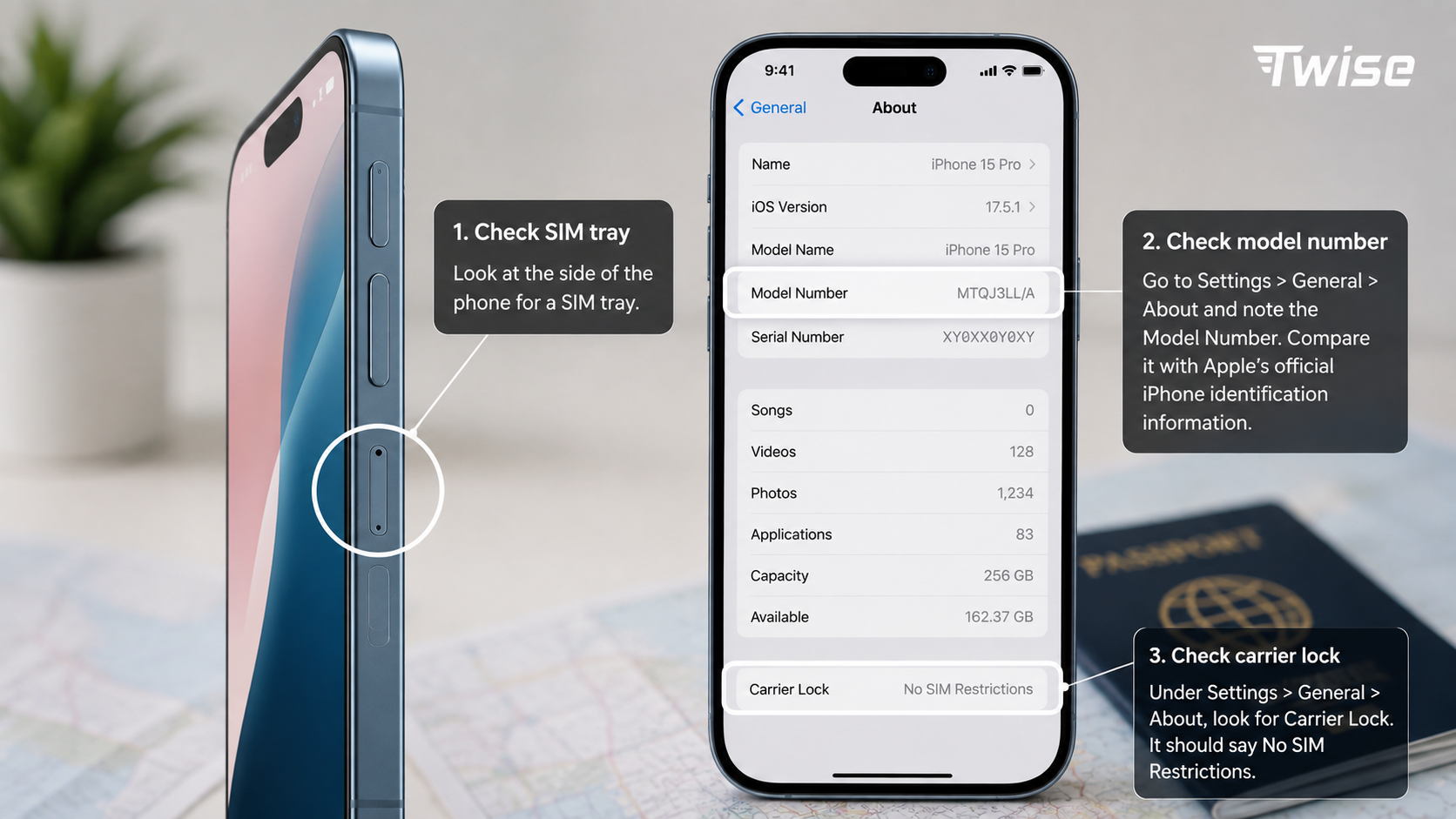
Look at the side of the phone for a SIM tray or check the model number under Settings > General > About. You can compare that number with Apple’s official iPhone identification information.
The phone must also be carrier-unlocked before you can freely install a plan from another provider. Under Settings > General > About, look for Carrier Lock. Ideally, it should say No SIM Restrictions.
iPhone 16 eSIM Support in Different Countries
The iPhone 16 hardware is not identical in every market. Apple adjusts SIM configurations to regional carrier systems and regulatory requirements.
| Purchase region | Typical iPhone 16 SIM configuration | Practical travel implications |
| United States | Dual eSIM with no physical SIM tray | All home and travel plans must be activated digitally |
| Germany and most of Europe | Nano-SIM plus eSIM, with Dual eSIM support | Keep a home SIM active while using a digital travel plan |
| Canada, Japan and most international markets | Generally nano-SIM plus eSIM | Flexible for both physical local SIMs and travel eSIMs |
| Mainland China | Dual nano-SIM on supported regional models; eSIM availability is restricted | Do not assume a mainland China model can install a travel eSIM |
| Hong Kong and Macao | Regional configuration may include dual nano-SIM | Verify the exact model number before purchasing a plan |
The country in which you use the phone does not normally change its hardware capabilities. For example, taking a US iPhone 16 to Germany does not make a physical SIM tray available. Conversely, a German iPhone 16 keeps its nano-SIM slot when used in the United States.
Before buying an eSIM for international travel, confirm three things:
- Your exact iPhone model supports eSIM.
- The phone is not locked to its original carrier.
- The plan provides coverage in your destination.
Travelers should make these checks before departure. Airport Wi-Fi may be enough to install a plan, but it is not the ideal place to discover that an imported device is locked or uses an incompatible regional configuration.
How Many eSIMs Can You Use on the iPhone 16 Series?
The iPhone 16 series can store eight or more eSIM profiles and use two mobile lines at the same time. However, the number of stored plans is different from the number of active plans.
In practical terms:
- You can save multiple eSIM plans on the phone.
- You can keep up to two supported lines active simultaneously.
- You can switch stored plans without scanning the original QR code again.
- Only one line is normally selected for cellular data at a time.
- Calls and messages can use different default lines.
This is useful for travelers who visit several countries. Someone traveling from Germany to France, then to the United States, could store a home plan, a European travel plan, and a US plan on the same device. The unused plans remain installed but can be turned off.
To review your plans, open Settings > Cellular or Settings > Mobile Service. The wording varies by region and iOS language.
Label each line clearly—for example, “Home,” “Europe,” “USA,” or “Travel Data.” Clear labels reduce the risk of selecting the wrong line for data roaming or accidentally using an expensive home plan abroad.
How to Activate an eSIM Plan on the iPhone 16
There are several ways to activate an eSIM plan on an iPhone 16:
- Scan a QR code supplied by the provider.
- Enter the SM-DP+ address and activation code manually.
- Install the plan through the provider’s app.
- Use Apple’s eSIM Quick Transfer.
- Accept carrier activation during initial iPhone setup.
Before starting, make sure the iPhone:
- Is connected to reliable Wi-Fi
- Has sufficient battery power
- Is running an up-to-date version of iOS
- Is carrier-unlocked
- Does not already have two active lines blocking another activation
- Has the provider’s installation details available on another screen
Apple’s current eSIM setup guidance covers carrier activation, QR installation, app-based setup, manual entry, and transfers between compatible devices.
For a travel plan, installation and network activation may occur at different times. Some plans begin as soon as they are installed. Others start only when the phone first connects to a supported destination network. Read the activation policy before scanning the QR code.
Activate an eSIM Plan on the iPhone 16 Using a QR Code
QR-code installation is the most common method for travel plans because it does not require a physical SIM or a carrier-store visit.
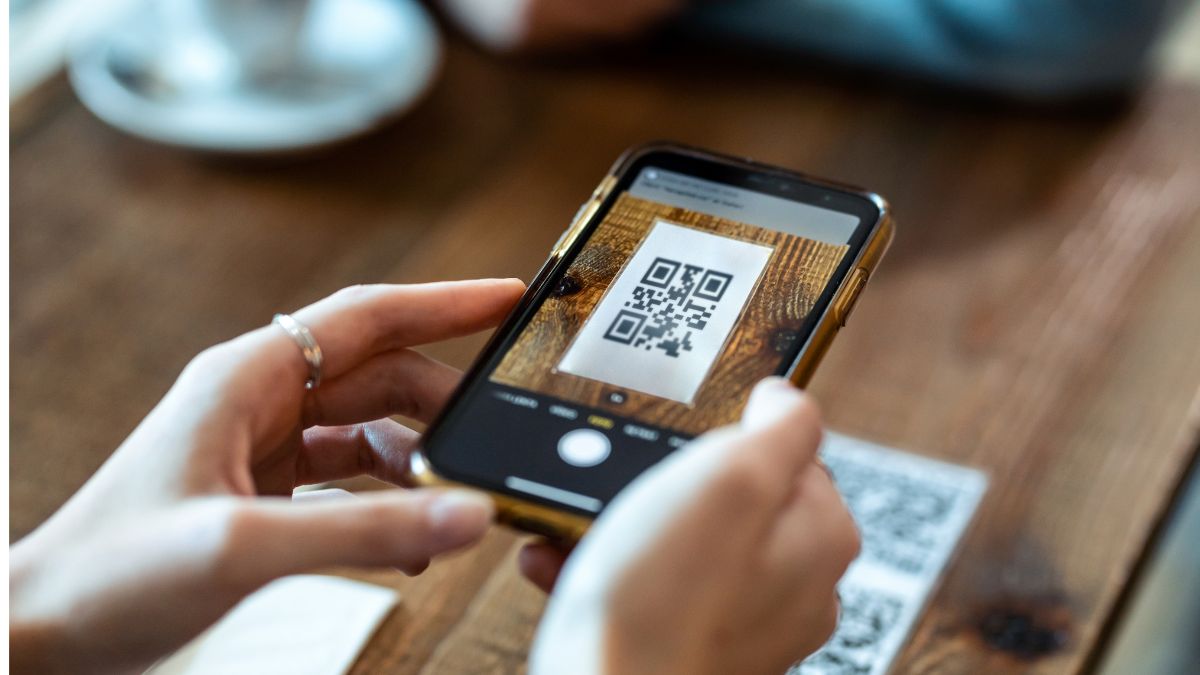
Follow these steps:
- Connect the iPhone 16 to Wi-Fi.
- Open Settings.
- Tap Cellular or Mobile Service.
- Select Add eSIM.
- Tap Use QR Code.
- Scan the code provided by your carrier or travel provider.
- Enter a confirmation code if requested.
- Wait for the cellular plan to be added.
- Give the new line a recognizable label.
- Select the preferred line for mobile data.
If the QR code was emailed to the same iPhone, display it on a laptop, tablet, or another phone. Depending on the iOS version and delivery format, you may also be able to press and hold a compatible QR code displayed on the device.
Do not delete the confirmation email immediately. Keep the plan details until installation and network connection have been verified.
Many QR codes can be used only once. If the plan is deleted after installation, scanning the same code again may fail. In that situation, the provider may need to issue a replacement.
Activate an eSIM Plan on the iPhone 16 Manually with an SM-DP+ Address
Manual installation is useful when the camera cannot scan the QR code or the provider sends activation details as text.
An SM-DP+ address directs the iPhone to the server that securely delivers the eSIM profile. It is not an ordinary website address and should be entered exactly as supplied.
To install manually:
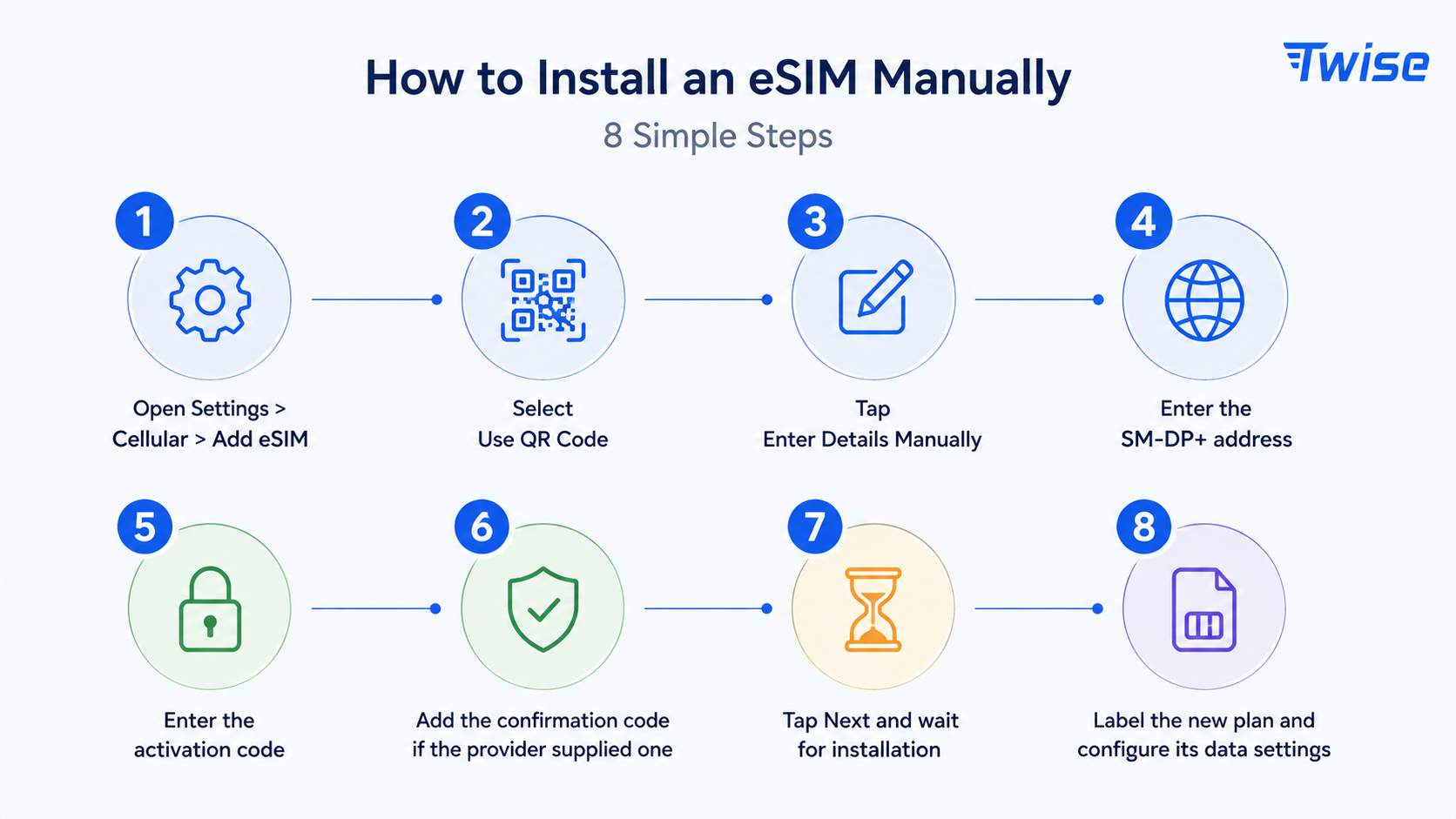
Copying is safer than typing because activation strings may contain similar-looking characters. Avoid adding spaces before or after the SM-DP+ address or activation code.
If the details are rejected, do not make repeated guesses. Confirm that the code has not already been used and contact the provider with the exact error shown on the screen.
Activate an eSIM Plan on the iPhone 16 Through Your Carrier’s App
Some mobile carriers and travel providers allow customers to buy, install, and manage a plan through an iOS app.
The typical process is:
- Download the provider’s official app.
- Sign in or create an account.
- Choose the required country, region, data allowance, and validity period.
- Complete payment.
- Tap the installation or activation button.
- Approve the iOS request to add the cellular plan.
- Return to Settings > Cellular to review the line.
An app can make top-ups and data-usage checks easier, but do not rely exclusively on it. Save the order number and support details separately in case the app requires an internet connection when the travel line is not yet working.
Only install apps from the official App Store listing. A legitimate provider should clearly explain coverage, validity, throttling, hotspot use, activation timing, and whether calls or SMS are included.
How to Transfer an eSIM to an iPhone 16
Apple’s eSIM Quick Transfer can move a compatible mobile number from an old iPhone to an iPhone 16 without scanning a new QR code. Carrier support is required.
During initial setup, keep the old iPhone nearby and follow the onscreen instructions when asked to transfer cellular service.
To transfer after setup:
- Place both iPhones close together.
- Turn on Bluetooth.
- Connect both devices to Wi-Fi.
- Sign in with the relevant Apple Account.
- On the iPhone 16, open Settings > Cellular.
- Tap Add eSIM.
- Select Transfer From Nearby iPhone.
- Choose the number you want to move.
- Approve the transfer on the old iPhone.
- Wait for the line to activate on the iPhone 16.
The old SIM or eSIM is normally deactivated when the transfer completes.
If Transfer From Nearby iPhone does not appear, the carrier may not support Quick Transfer for that plan. The provider may instead require a new QR code, app activation, account verification, or direct customer support.
Travel eSIMs are often handled differently from permanent carrier numbers. Some are tied to the device on which they were first installed and cannot be transferred automatically. Check the plan rules before replacing, repairing, or resetting your phone.
Benefits of Using an eSIM on the iPhone 16
The main benefit of eSIM is operational flexibility. Travelers can arrange connectivity before departure and switch plans without handling a tiny physical card.
Key advantages include:
- Faster arrival setup: A plan can be installed before landing, reducing dependence on airport SIM counters.
- Dual-line use: Keep a home number available for banking codes and messages while using a separate plan for data.
- No physical SIM swapping: There is less risk of losing the home SIM during a trip.
- Multiple stored plans: Frequent travelers can keep several destination profiles on one device.
- Remote purchase: Plans can be bought without finding a local store or presenting the phone for installation.
- Better line control: iOS allows separate choices for calls, messages, and mobile data.
- Improved physical security: An eSIM cannot simply be removed from a stolen phone like a physical SIM, although account security still matters.
The most practical setup for many international travelers is to leave their regular number active for incoming texts, disable data roaming on that line, and use the travel plan for cellular data.
Before enabling both lines, check whether the home carrier charges for incoming calls, voicemail, or roaming activity. An active line does not automatically mean every service is free.
The Best eSIM Options for the iPhone 16 Series
The best plan is not necessarily the one with the largest data allowance. It is the plan that matches the destination, trip length, network requirements, and the services you actually use.
| Traveler situation | Plan features to prioritize | Common mistake to avoid |
| Short city break | Small data package, fast activation, clear validity | Paying for unlimited data that will not be used |
| Multi-country Europe trip | Regional coverage and simple cross-border use | Buying separate plans without checking regional options |
| US road trip | Broad network coverage, hotspot support, sufficient data | Choosing by price without checking rural coverage |
| Business travel | Stable network access, hotspot policy, support availability | Assuming every data plan includes calls and SMS |
| Long stay | Top-up support, longer validity, transparent speed policy | Buying several short plans that cost more overall |
| Dual-SIM use | Easy line labeling and predictable activation | Leaving data switching or home-line roaming uncontrolled |
For a single-country trip, a local plan may provide a more targeted network arrangement. For a journey across several destinations, regional coverage is usually easier to manage than repeatedly installing separate profiles.
Twise provides digitally installed plans for travelers who need maps, hotel communication, transit apps, ride-hailing, translation, and everyday searches after arrival. Travelers can compare available eSIM plans before departure and choose according to destination rather than relying on airport Wi-Fi or last-minute roaming decisions.
What to Do If an eSIM Is Not Working on Your iPhone 16
Start with the simplest checks. Many apparent eSIM failures come from an inactive line, incorrect data selection, incomplete installation, or arrival in a country where the plan has not yet connected.
Try the following in order:
- Confirm installation: Go to Settings > Cellular and check whether the plan appears.
- Turn on the line: Select the plan and enable Turn On This Line.
- Choose the correct data line: Under Cellular Data, select the travel plan.
- Check data roaming: Many travel plans require data roaming to be enabled on the travel line.
- Disable roaming on the home line: This helps prevent unintended home-carrier data use.
- Toggle Airplane Mode: Leave it on for about 20 seconds, then turn it off.
- Restart the iPhone: This can force a new network registration.
- Check network selection: Use automatic selection unless the provider specifies a particular network.
- Review the APN: Enter an APN only when the provider explicitly supplies one.
- Check coverage and activation dates: Confirm the plan covers your present location and has not expired.
- Update iOS and carrier settings: Connect to Wi-Fi and check for updates.
- Contact the provider: Send screenshots of the line status and error message, but hide sensitive activation codes.
Do not delete the plan as an early troubleshooting step. A deleted eSIM may not be recoverable through the original QR code.
If the plan appears as Activating while you are still outside the destination, it may simply be waiting for a supported network. If it remains stuck after arrival, restart the phone and contact the provider before removing it.
iPhone 16 eSIM: Key Points at a Glance
All primary iPhone 16 models support eSIM, but regional hardware differences determine whether the device also has a physical SIM tray.
The key facts are:
- US iPhone 16 models are eSIM-only.
- Most German and European models retain a nano-SIM tray.
- Mainland China models require special attention because eSIM support is restricted.
- The iPhone 16 can store eight or more eSIM profiles.
- Two supported lines can be active at the same time.
- Plans can be installed by QR code, manual details, provider app, carrier activation, or compatible transfer.
- The phone should be unlocked before installing a third-party plan.
- Data roaming may need to be enabled on a travel eSIM.
- Deleting a plan does not automatically cancel the service contract.
- A QR code may not work a second time after the plan has been deleted.
For most travelers, the safest approach is to install the plan on reliable Wi-Fi before departure, label both lines clearly, and confirm which line will handle mobile data.
FAQs
On a European iPhone 16, the two formats can work together. You can keep a physical home SIM installed and add a travel eSIM for data.
Apple describes eSIM as an industry-standard digital SIM that allows a cellular plan to be activated without a physical card. The precise carrier and activation options vary by market.
Although two lines can remain active, only one is normally used for cellular data at a time. Enable Allow Cellular Data Switching only if you understand how both carriers will charge for data.
- The carrier does not support eSIM Quick Transfer.
- The old and new phones do not meet Apple’s transfer requirements.
- Bluetooth is disabled.
- The devices are not nearby.
- The iPhone 16 is carrier-locked.
- The plan is a non-transferable travel eSIM.
- The carrier requires a replacement QR code.
- Account verification has not been completed.
Check Apple’s list of carriers and service providers supporting eSIM. If Quick Transfer is unavailable, contact the carrier before deleting the plan from the old phone.
Future hardware decisions should not be treated as confirmed until Apple publishes regional specifications. Buyers who require a physical SIM should check the exact model and technical specifications at the time of purchase.
Only delete the plan when you are certain it is no longer required or the provider has instructed you to do so. Deleting an eSIM from the iPhone does not necessarily cancel billing or close the carrier account. It only removes the digital profile from the device.
The iPhone 16 eSIM support system gives travelers a practical way to keep their home number and destination data separate. Once the regional model, carrier lock, activation timing, and data settings have been checked, installation usually takes only a few minutes.
