

Does an eSIM Drain Battery? What Travelers Should Know
Sep
Does an eSIM drain battery faster than a physical SIM? Not inherently. In everyday travel, battery use depends more on signal strength, active SIM lines, network settings, screen time, and background activity than on the SIM format. A travel eSIM may coincide with faster battery drain because you are navigating unfamiliar streets, taking photos, sharing a hotspot, or keeping two lines active. This guide explains what actually affects battery life, why using a plan outside its coverage area can matter, and which iPhone and Android settings help preserve power without losing the mobile connection you need during your trip abroad.
What Does an eSIM Do?
An eSIM stores the digital subscription information your phone needs to authenticate with a mobile network. It performs the same essential identification function as a physical SIM, without requiring a removable card.
Your phone’s modem and antennas handle the cellular connection. The eSIM does not act as a separate transmitter that continuously sends travel data.
After installing a travel eSIM, you can select that subscription for mobile data and, if included in the package, calls and SMS.
A compatible phone may also let you keep your home subscription enabled. This creates a Dual SIM configuration, whether you use:
- One physical SIM and one eSIM
- Two active eSIMs, where supported
- Several stored profiles with only selected lines enabled
Stored profiles are not the same as active connections. Keeping an unused profile installed but switched off is different from enabling it and allowing the phone to search for service.
That distinction explains many battery concerns. Adding a second active line changes how the phone manages cellular service. Merely storing another eSIM does not create another continuously active network connection.
Naming the profiles Home, Work, and Travel makes it easier to see which lines are enabled before departure.
Does an eSIM Drain Battery?
An eSIM is not automatically more battery-hungry than a physical SIM. Equally, switching to eSIM does not guarantee longer battery life.
A meaningful comparison would need the same phone, network, signal conditions, active-line configuration, and usage. Comparing a quiet day at home with a sightseeing day abroad does not isolate the effect of the SIM format.
There is no dependable universal figure such as “an eSIM uses 10% more battery.” The actual difference depends on the device and connection conditions.
Why battery drain often appears after installing a travel plan
Travel changes how you use your phone.
You may spend the morning navigating, photograph a museum, upload videos at lunch, and use a hotspot while waiting for a train. Meanwhile, the display is brighter outdoors and the phone moves between coverage areas.
The travel plan enables those activities, but that does not make the eSIM itself the main power consumer.
| Situation | What can increase battery use | What to check |
| Weak cellular coverage | Network searching and maintaining a difficult connection | Signal conditions on each active line |
| Two enabled SIM lines | Additional network monitoring and signaling | Whether both lines are needed |
| Continuous navigation | Screen, location processing, and live updates | Screen-on time and map usage |
| Hotspot sharing | Cellular data plus the connection to another device | Connected devices and session length |
| Photo or video uploads | Sustained data transfer and processing | Background backup settings |
| Bright outdoor display | Higher screen power consumption | Brightness and screen timeout |
| Recent software update | Temporary background setup tasks | Battery usage insights |
| Older battery | Reduced available capacity | Battery health or service warnings |
Compare Travel Connectivity Options
Apple identifies weak signal, lack of coverage, background activity, and high brightness as possible contributors to faster drain. Its battery troubleshooting guidance explains how to inspect these factors in Settings.
Does Dual SIM use more battery?
Keeping two lines enabled can consume more power than using one, because the phone manages service for both subscriptions. The difference is not necessarily large or constant.
A home line with poor roaming reception may be more relevant than a travel line with a stable connection.
Before disabling the home line, consider what you would lose:
- Incoming calls to your usual number
- SMS verification codes
- Business messages delivered through that subscription
Turning off Data Roaming on the home line does not turn the line off. It can still remain registered for other services.
If you do not need the home number, disabling that line is a reasonable battery-saving test. If banking codes are essential, keep it available and focus first on screen use, hotspot sessions, and background uploads.
Is 5G responsible
Sometimes network mode contributes, but 5G is not always less efficient in every situation. Signal quality, modem design, and the workload all matter.
On supported iPhones, 5G Auto lets the device switch to LTE when 5G would not noticeably improve the experience. 5G On keeps 5G in use whenever available and may reduce battery life. Apple explains the difference in its 5G settings guide.
If 5G reception is inconsistent, testing LTE can be useful. Compare it under similar conditions rather than assuming that one mode is always better.
Using Your eSIM In the Right Region
Enable your travel line according to its coverage and activation instructions.
A destination plan may install successfully at home but be unable to connect there. If an enabled line cannot register with an eligible network, the phone may continue searching or attempting registration. This can contribute to unnecessary battery use.
The practical approach is:
- Read the plan’s activation policy.
- Install before departure if advance installation is allowed.
- Label the profile by destination.
- Keep it switched off until needed.
- Enable it when you reach a covered location.
Installation timing and battery management are separate issues. Some plans start their validity when installed; others begin at first eligible connection or through a scheduled activation.
Switching a line off generally does not pause a validity period that has already started.
Check actual coverage, not just the region name
A regional package does not necessarily include every nearby country. Airport layovers, border crossings, and side trips can change which plan you need.
For a trip to America, compare USA plans against your itinerary and the stated network coverage. For travel across Europe, review Europe options and verify every country rather than assuming all European destinations are included.
A supported country can still contain areas with poor reception. A mountain road, basement restaurant, or train tunnel may interrupt service even when the plan is working correctly.
Where practical, download essential directions before entering an area with unreliable coverage.
What to do when a line keeps showing No Service
First identify which subscription is affected. Your home line may show No Service while the travel line works normally.
If the travel line cannot connect:
- Confirm that you are inside its coverage area.
- Check whether activation is complete.
- Follow the provider’s Data Roaming instructions.
- Confirm that the plan has not expired.
- Check any required APN settings.
- Restart the phone or briefly toggle Airplane Mode.
- Contact support if the problem continues.
Use manual network selection only when the provider identifies an appropriate supported network. Selecting an arbitrary carrier does not guarantee service.
Do not delete the eSIM to troubleshoot battery drain. Turning it off is reversible; deleting it may require replacement installation credentials.
How to Save Battery Life
Start with the settings connected to your actual usage. Changing every available switch makes it harder to identify the cause and can disable services you need.
Check battery usage before changing the plan
On iPhone, open Settings > Battery. On Android, open Settings > Battery > Battery Usage, or the equivalent menu for your device.
Look for patterns:
- Does the screen account for extensive use?
- Has a photo app been uploading in the background?
- Was hotspot sharing active?
- Does drain continue while the phone is idle?
- Did the problem begin after a software update?
On Pixel phones, Google provides a dedicated battery drain troubleshooting guide. Battery menus and diagnostic features vary across Android manufacturers.
App usage percentages show how recorded battery consumption was distributed. They are not a direct measurement of the eSIM’s power use.
Disable lines you do not need
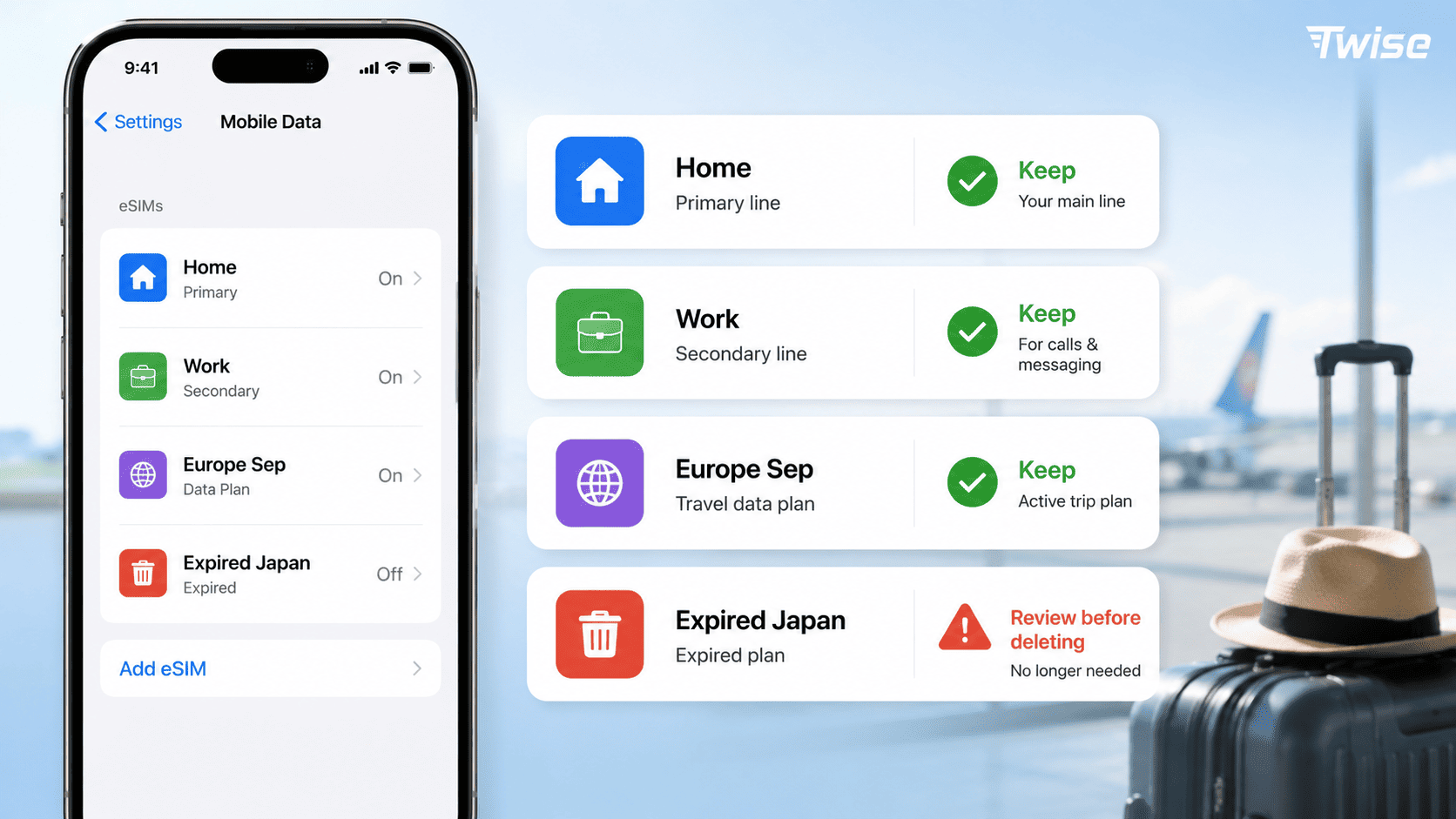
If a subscription is unnecessary during the trip, switch it off without removing the profile.
On iPhone:
- Open Settings > Cellular or Mobile Service.
- Select the unused line.
- Turn Turn On This Line off.
On Samsung Galaxy:
- Open Settings > Connections > SIM Manager.
- Find the unused SIM.
- Switch that line off.
Other Android phones may show Use SIM under Network & Internet > SIMs.
Menu wording varies. Verify the line label before making changes, especially if your home number receives authentication messages.
Match the setting to the problem
| Adjustment | When it helps | Tradeoff |
| Disable an unused SIM line | A second subscription is unnecessary or lacks coverage | Calls and SMS on that line stop arriving |
| Use Low Power Mode or Battery Saver | You need the remaining charge to last longer | Some background tasks and performance are reduced |
| Test 5G Auto or LTE | 5G is inconsistent or unnecessary for the task | Peak download speeds may be lower |
| Shorten hotspot sessions | A laptop or companion device uses your connection | Shared internet access ends |
| Download offline content | Repeated searches or transfers are avoidable | Live information still needs connectivity |
| Restrict large background uploads | Photos and videos transfer without your attention | Backups wait until later |
| Use Airplane Mode during prolonged no-coverage periods | Cellular service is unavailable and not needed | Ordinary cellular calls and messages are unavailable |
Keep roaming settings appropriate for each line
Do not switch off Data Roaming on a functioning travel plan simply because the battery is falling. Some packages require that setting to connect.
Use the travel line’s instructions, and keep home-line roaming disabled unless you intentionally need a home-carrier roaming package.
Disabling automatic data switching can help keep data on your chosen subscription, but it is primarily a control over line selection. It is not a guaranteed battery-saving feature.
Reduce avoidable screen and data use
Use a readable brightness level, enable a short screen timeout, and lock the phone when you do not need the display.
Download maps, translation packs, tickets, and entertainment before leaving accommodation. Offline maps can reduce downloads, but active navigation still uses location processing and often the screen.
Keep essential location access for navigation and transport apps. Restrict unnecessary background location access instead of turning every location service off.
For uploads and hotspot sharing:
- Schedule large photo backups for later.
- Stop video uploads when you need to preserve charge.
- Disconnect laptops after finishing work.
- Check that a connected computer is not downloading updates.
- Use trusted Wi-Fi for large transfers when practical.
Low Power Mode and Battery Saver are useful during long sightseeing days. Check that important notifications and navigation still behave as needed.
Keep the phone cool and reassess persistent drain
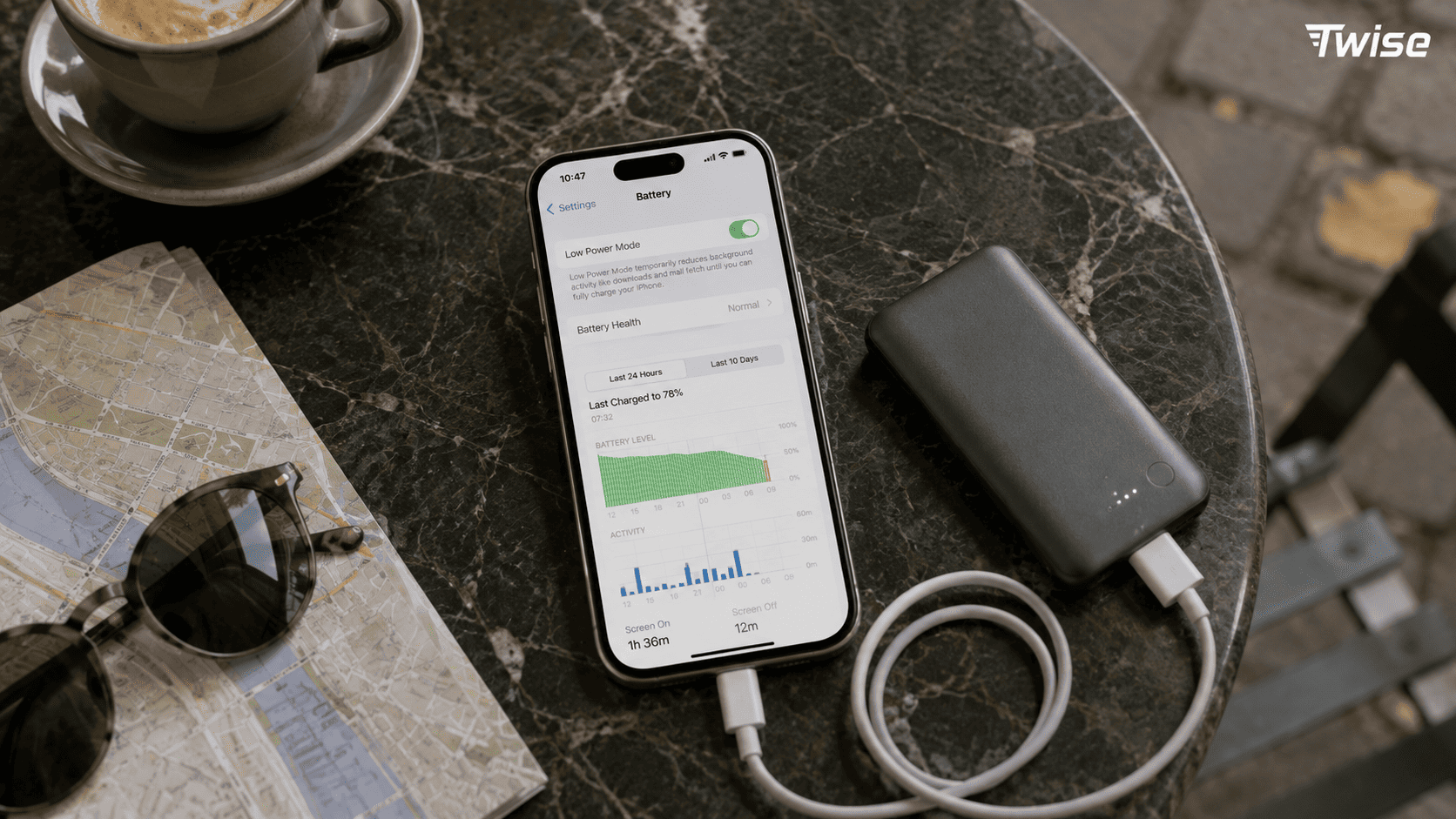
Navigation, charging, hotspot sharing, and direct sunlight can combine to make a phone warm. Move it out of the sun and reduce demanding activity if a temperature warning appears.
A sudden battery problem that continues with the travel line disabled may involve an app, software issue, or aging battery rather than the subscription.
To investigate safely:
- Stay in one location with similar reception.
- Keep your normal app use reasonably consistent.
- Disable only the unused line.
- Compare several similar periods, not a few minutes.
- Re-enable any line needed for important calls or codes.
Avoid repeatedly deleting profiles, resetting the phone, or changing APNs without a connectivity reason.
When choosing a Twise eSIM, review the supported network, destinations, hotspot conditions, and activation instructions. Suitable coverage can help reduce avoidable connection problems, but no plan can promise a fixed number of extra battery hours.
Frequently Asked Questions
Not inherently. Signal conditions, active lines, network mode, and phone usage generally matter more than SIM format. A fair comparison requires equivalent conditions on the same device.
There is no universal percentage. Two enabled subscriptions can increase cellular activity, but the effect depends on the phone, networks, reception, and how both lines are used.
Stored, disabled profiles do not each maintain an active network connection. Focus on which subscriptions are enabled rather than how many profiles remain installed.
It can stop some data activity, but the line may remain enabled and connected for other services. Turning off an unnecessary line is different from disabling its Data Roaming setting.
Deletion is generally unnecessary for that purpose. Disable the profile if you do not need it. Check reuse and reinstall rules before removing it permanently.
Common changes include two enabled lines, unfamiliar network conditions, outdoor brightness, navigation, photography, hotspot use, and uploads. Check battery statistics before attributing the change to eSIM technology.
A disabled profile does not maintain its own active cellular connection. Significant drain should prompt you to investigate enabled lines, apps, screen activity, software, and battery condition.
No. Results depend on coverage and workload. Testing LTE may help in inconsistent 5G coverage, while automatic network modes can balance performance and consumption.
It can reduce power spent searching for cellular service. Use it only when you can be without ordinary cellular calls and messages. Wi-Fi can usually be re-enabled separately.
The allowance itself does not consume power. However, streaming, sustained downloads, backups, and hotspot use enabled by that allowance can increase battery consumption.
