

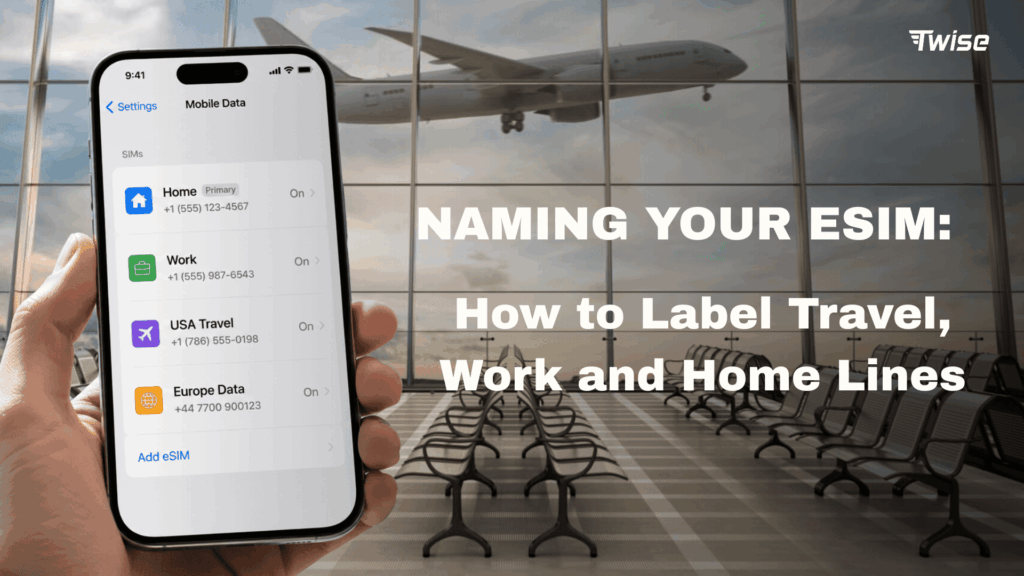
Best Tips For Naming Your eSIM: How to Label Travel, Work and Home Lines
Sep
Naming your eSIM makes it easier to manage travel, work, and home lines on a Dual SIM phone. This guide explains why clear labels matter, which naming system works best, and how to rename mobile plans on iPhone and Android. Learn how descriptive, consistent, and privacy-conscious labels help you select the correct line for calls, messages, and cellular data while reducing accidental roaming or profile deletion. Follow practical iOS, Samsung, and Google Pixel instructions, with suggested names for single-country trips, regional travel, business numbers, and temporary plans. Organize your digital SIM profiles before departure for faster, safer switching abroad.
Why Name Your eSIM?
Naming your eSIM helps translate technical carrier information into a label you can recognize immediately.
Without a custom label, your phone may identify lines using generic names such as:
- Primary
- Secondary
- Personal
- Business
- Travel
- Cellular Data
- A carrier name
- A shortened phone number
These labels may be sufficient when you have only two permanent numbers. They become harder to manage when you store several destination profiles or when the carrier name displayed by the phone differs from the provider you purchased from.
For example, you might buy a Europe plan from one provider but see the name of its underlying carrier in your settings. A label such as Europe Sep 2026 tells you more than the network name alone.
According to Apple’s current Dual SIM instructions, iPhone labels are used when choosing numbers for calls and messages, selecting a cellular data line, and assigning a preferred number to contacts.
So that you are using the correct eSIM
A clear label helps prevent your home line from being selected for mobile data after you arrive abroad.
A practical travel configuration might be:
| Function | Selected line | Recommended label |
| Cellular data | Destination plan | Japan Data |
| Personal calls | Home number | Home |
| Business calls | Company number | Work |
| Banking SMS | Home number | Home SMS |
| Regional travel data | Regional plan | Europe Trip |
This distinction matters because a Dual SIM phone may use different lines for different functions. Selecting the travel line for cellular data does not automatically make it the default for calls. Likewise, a phone may remember the line previously used for an individual contact.
Before leaving the airport, confirm:
- The travel line is turned on.
- The travel line is selected for cellular data.
- Data Roaming is enabled on the travel line if required.
- Data Roaming is disabled on the home line.
- Automatic cellular data switching is off if unexpected roaming is a concern.
- The correct line is selected before making a conventional call.
Labels should describe the plan’s purpose rather than relying on the provider name alone. Twise USA is more useful than Secondary, but USA Data Sep may be even clearer when you store multiple plans from the same provider.
Highly rated 4.4/5.0 on Trustpilot
This heading reflects a commercial claim in the referenced competitor article. It should not be presented as a Twise rating unless Twise’s current Trustpilot score has been independently verified at publication.
Ratings can help travelers assess a provider, but they do not identify which installed line should be used. Naming should be based on operational details such as destination, purpose, and validity.
Useful label formats include:
- Twise USA
- Twise Europe
- Japan Data
- Work Calls
- Home SMS
- Backup Data
Save up to 50% on roaming
Savings compared with home-carrier roaming depend on the destination, trip length, carrier tariff, and selected package. A fixed percentage should not be assumed for every traveler.
Clear naming can nevertheless reduce accidental roaming. If Home SIM and Europe Data are visible next to each other, it is easier to confirm that the prepaid line is selected before opening maps, requesting a ride, or uploading photos.
A travel eSIM should still be evaluated based on coverage, validity, data allowance, calls, SMS, hotspot policy, and activation timing.
Fast and reliable network
The name assigned to a profile does not affect connection quality. Network performance depends on the underlying carrier, local coverage, device compatibility, congestion, and any package restrictions.
Include the destination in the label so you can quickly identify which plan should connect in a particular country. If the profile shows No Service at home, that may simply mean its supported network is available only at the destination.
So that you don’t delete the wrong eSIM profile
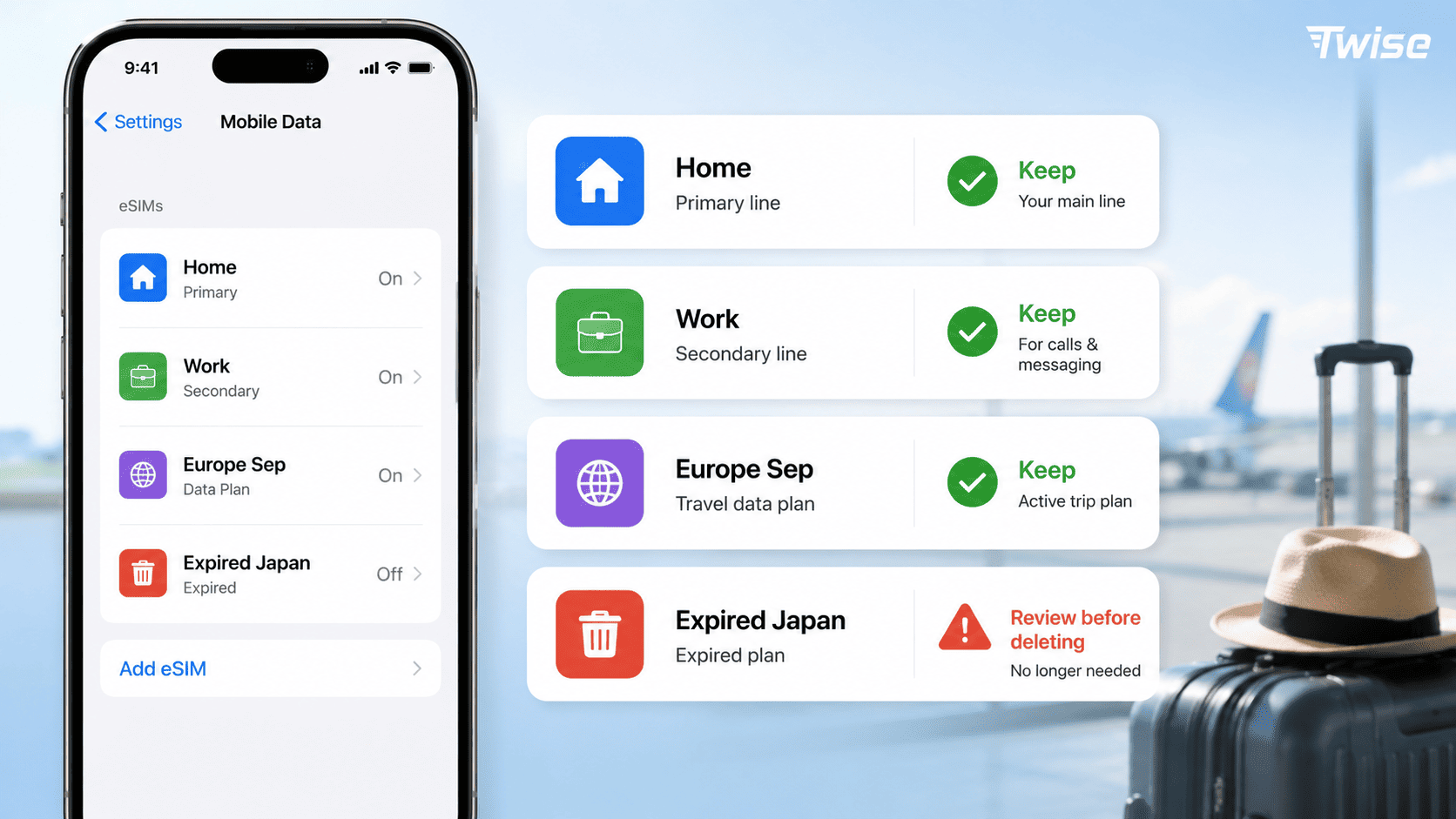
Custom labels are especially valuable when removing expired plans.
A phone can store several profiles, and some may display similar carrier names. Deleting the wrong one can interrupt your home, work, or future travel service.
This matters because an eSIM profile is not always freely reinstallable. The original QR code may be limited to one device or one installation. A provider may need to issue new credentials if the profile is erased.
Before deleting any line:
- Open its details.
- Check its label and phone number, if one is included.
- Compare its ICCID with the provider’s order information, where available.
- Confirm that the plan has expired or is no longer needed.
- Check whether it can be reused on a future trip.
- Make sure another active line provides connectivity.
- Ask the provider if you are uncertain.
Turning off a line is different from deleting it. If you may need the plan again, disable it temporarily instead of erasing the profile.
For a traveler with a home line, work line, current Europe plan, and unused USA plan, generic labels such as Primary and Secondary offer little protection. Specific labels make deletion decisions much safer.
Tips for naming your eSIMs
The best eSIM names are short, descriptive, consistent, and safe to display on screen.
A good label should answer at least one of these questions:
- Where does this plan work?
- What is it used for?
- Who owns or manages it?
- When will it be needed?
- Does it provide data, calls, or both?
You do not need to include every detail. The complete plan information should remain in the order confirmation or provider account.
Avoid Personal Information
Do not place sensitive information in an eSIM label.
Avoid including:
- Full phone numbers
- Passport numbers
- Account passwords
- Activation codes
- QR-code details
- Complete order numbers
- Banking information
- Employer credentials
- A home address
- A child’s full name
Labels can appear in Settings, Control Center, call screens, screenshots, or support conversations. A short description such as Work, Home, or USA Data provides enough context without exposing sensitive details.
If several family members use one device temporarily, initials may be sufficient. Avoid labels that identify a person more precisely than necessary.
Do not use the label as the only place where important plan details are stored. Keep validity, coverage, order information, and support instructions in a secure email or password-protected document.
Be Consistent
Choose one naming pattern and use it across all profiles.
Possible systems include:
| Naming system | Examples | Best for |
| By purpose | Home, Work, Travel | Two or three permanent lines |
| By destination | USA, Japan, Europe | Frequent international travelers |
| By destination and service | USA Calls, Japan Data | Plans with different features |
| By destination and date | Europe Sep, Korea Oct | Repeated trips to the same market |
| By priority | Main, Backup, Emergency | Redundant data plans |
Consistency reduces decision time. If every travel profile follows Destination + Function, a new plan called France Data is immediately understandable.
Avoid mixing systems such as Primary, Japan July, Work Number, and SIM 4 unless each difference is intentional.
A simple system for most travelers is:
- Home for the regular personal number
- Work for the business number
- Destination + Data for a data-only travel plan
- Destination + Calls for a line that includes voice service
- Backup + Destination for a secondary connection
Consider Color Coding
Some phones allow users to assign colors or icons to SIM lines. These visual markers can make line selection faster, especially when names are shortened on the call screen.
A practical color system might use:
- Blue for Home
- Green for Work
- Orange for Travel
- Gray for Backup
Colors should reinforce the written labels, not replace them. A person may forget whether green means work or travel, and colors may appear differently under accessibility settings.
On Samsung devices, SIM Manager may offer an icon for each line in addition to its name. Options vary by model, region, and software version.
Use the same color logic across trips. If orange always represents travel, do not assign orange to the home line on a new phone.
Image note 3: Naming system examples. Create a clean visual showing four lines: Home in blue, Work in green, USA Data in orange, and Backup in gray. Keep the names visible because color alone should not communicate the difference.
Best Tips For Naming Your eSIM
Rename a profile after installing it and before configuring default calls or mobile data.
First confirm which line is which. Compare the carrier, phone number, ICCID, destination, or order details before changing labels. Naming the wrong profile clearly does not solve the underlying identification problem.
Menu labels vary with phone manufacturer, region, and operating-system version.
On iOS
To name or rename a cellular plan on iPhone:
- Open Settings.
- Tap Cellular or Mobile Data.
- Under SIMs, select the line you want to rename.
- Tap Cellular Plan Label.
- Choose a suggested label or select the custom-label option.
- Enter a short descriptive name.
- Return to the Cellular screen and verify the result.
Suggested labels may include:
- Primary
- Secondary
- Personal
- Business
- Travel
- Cellular Data
A custom name such as Europe Data or Home SMS is often clearer.
After renaming the line, review the remaining settings:
- Tap Cellular Data and select the intended data line.
- Review Default Voice Line.
- Check which line is associated with iMessage and FaceTime.
- Turn Allow Cellular Data Switching off if unintended home-line data use is a concern.
- Open the travel profile and enable Data Roaming only if its instructions require it.
An iPhone can use one cellular data network at a time. Labels help show which line is selected, but they do not prevent the phone from following other default-line or contact-specific preferences.
Apple also allows an iPhone to remember which number was last used for a contact. Check the line displayed before calling a hotel, client, or local business.
On Android
Android instructions vary by manufacturer.
On a Samsung Galaxy:
- Open Settings.
- Tap Connections.
- Select SIM Manager.
- Tap the eSIM or mobile plan you want to rename.
- Select the name or icon option.
- Enter a descriptive label.
- Save the change.
- Return to SIM Manager and confirm the defaults for calls, messages, and mobile data.
On a Google Pixel:
- Open Settings.
- Tap Network & Internet.
- Select SIMs.
- Tap the relevant line.
- Look for the SIM name or edit option.
- Enter the new label and save it.
- Review the preferences for calls, texts, and mobile data.
Google’s official Pixel Dual SIM guide confirms that users can select separate SIM preferences for data, calls, and text messages. Available naming controls and wording may vary by Android version.
On Xiaomi, Motorola, OnePlus, and other phones, search Settings for terms such as:
- SIMs
- SIM Manager
- Mobile Network
- SIM Cards
- SIM Name
- Edit SIM
- SIM Preferences
If a custom-name option is unavailable, use any built-in category or icon that makes the line easier to recognize.
After renaming, test the setup:
- Turn Wi-Fi off temporarily.
- Confirm the intended line supplies mobile data.
- Start a test call and inspect the selected line.
- Open the messaging app and confirm its default.
- Recheck roaming on both the home and travel lines.
Do not delete a profile just because the phone will not let you rename it. Naming is an organizational feature and does not determine whether the service can connect.
Frequently Asked Questions
Yes. Renaming changes only the label shown on your device. It does not alter the phone number, data allowance, validity, carrier, or activation status.
No. The custom name is an organizational setting stored by the phone. Network access still depends on the profile, provider, coverage, and device configuration.
Use the destination and purpose, such as USA Data, Japan Calls, or Europe Trip. Add a month or year if you store several plans for the same destination.
You can, particularly if you use multiple providers. However, destination and purpose are usually more useful during a trip. Twise Japan Data is clearer than Twise 2.
A phone may allow it, but duplicate names make line selection and deletion harder. Give each active or stored profile a distinct label.
Editing or replacing a label does not delete the profile. Selecting Delete eSIM, Erase eSIM, or Remove Mobile Plan does.
Only after confirming that the plan has expired, cannot be reused, and is no longer needed. Turning it off is safer when future use remains possible.
The provider may use an underlying or partner network. Your custom label helps identify the purchased plan even when the network name displayed by the phone is different.
The plan keeps the same label throughout the device, but the phone can use different lines for calls, messages, and data. Review each default separately.
Not always. Profile-transfer methods and labels vary by carrier, provider, and operating system. After any device transfer, verify the names and default settings again.
