

Using Phone Overseas: Best Dos and Don’ts Advices
Sep
Using phone overseas can be simple, secure, and affordable when the device is prepared before departure. This guide explains the essential dos and don’ts of international mobile use, including data roaming, Airplane Mode, prepaid plans, Wi-Fi security, device protection, and phone backups. Learn how to configure your home SIM, install a travel plan, protect important accounts, and maintain access to maps, bookings, messages, and ride-hailing apps. Practical iPhone and Android instructions help reduce unexpected roaming charges, avoid insecure connections, and prepare for loss or damage so your phone remains a reliable travel tool throughout your international trip.
Do: Turn Off Data Roaming when Using Phone Overseas
Turn off Data Roaming on your home SIM before leaving your country unless your home plan explicitly includes international service at an acceptable price.
Data roaming allows a phone to use a partner network outside its home carrier’s normal coverage area. Without an international package, background data can generate charges even when you are not actively browsing.
Common sources of background usage include:
- Cloud photo and video uploads
- Email synchronization
- App and operating-system updates
- Social media refreshes
- Automatic map downloads
- Messaging attachments
- Location services
- Wi-Fi Assist
- Automatic cellular data switching
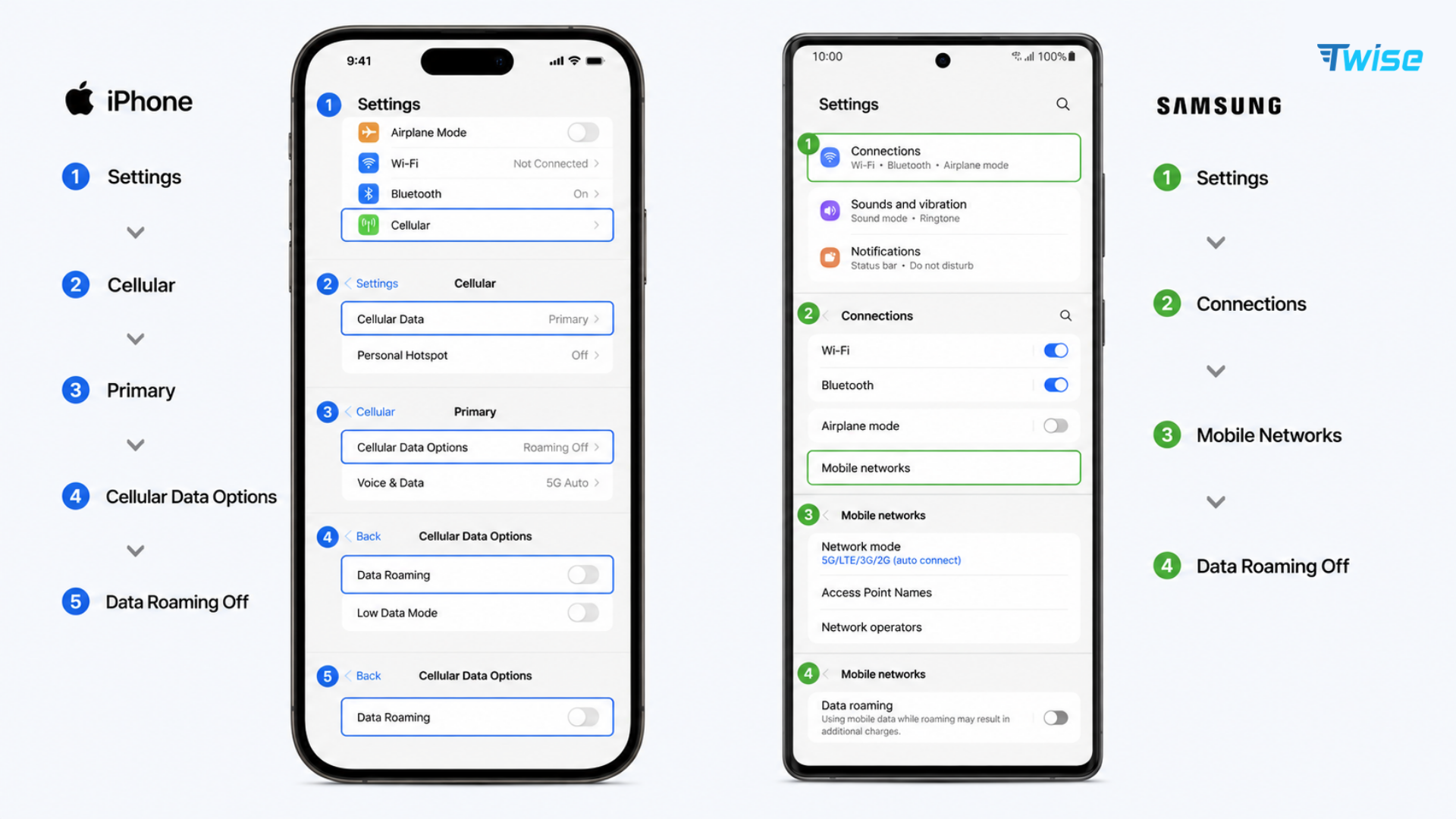
On an iPhone:
- Open Settings.
- Tap Cellular or Mobile Service.
- Select your home line.
- Tap Cellular Data Options.
- Turn Data Roaming off.
- Return to Cellular Data.
- Turn Allow Cellular Data Switching off if you use Dual SIM.
On Android:
- Open Settings.
- Tap Network & Internet, Connections, or SIM Manager.
- Select the home SIM.
- Turn Roaming or Data Roaming off.
- Disable automatic data switching where available.
Apple confirms that travelers can turn off Data Roaming to avoid international roaming charges. It also notes that an international data plan may require roaming to remain enabled on the relevant line. See Apple’s current cellular data instructions.
Turning off Data Roaming does not necessarily prevent charges for calls, SMS, MMS, voicemail, or connected smartwatches. If you want maximum protection, turn the home line off completely or ask the carrier to block international roaming.
Don’t: Rely on Airplane Mode.
Airplane Mode does prevent cellular roaming while it remains switched on. The problem is relying on it as your only travel strategy when you may later disable it to receive a call, use Bluetooth, troubleshoot Wi-Fi, or reconnect after landing.
When Airplane Mode is activated, the phone normally disables its cellular radio. You can then turn Wi-Fi and Bluetooth back on manually without reactivating cellular service.
A safer Wi-Fi-only setup is:
- Turn on Airplane Mode.
- Turn Wi-Fi back on manually.
- Confirm that no carrier name or cellular signal appears.
- Leave the home SIM line disabled.
- Recheck the status after restarting the phone.
If you turn Airplane Mode off, the phone may immediately connect to a foreign network. Data Roaming may remain disabled, but calls, voicemail, or messages can still follow the carrier’s roaming rates.
Airplane Mode is suitable for travelers who can remain offline between Wi-Fi connections. It is less useful when you need live navigation, ride-hailing, translation, transport updates, or immediate hotel communication.
Do: Get a Prepaid Data Plan
Arrange a prepaid data plan before departure if you expect to use your phone regularly outside hotels and airports.
The main choices are:
| Connection option | Best use case | Main advantage | Main limitation |
| Home-carrier roaming pass | Short trips | Keeps the usual number and setup | Daily charges can accumulate |
| Local physical SIM | Longer single-country stays | Local pricing and possible local number | Requires a store visit or SIM replacement |
| Travel eSIM | Short or multi-country trips | Digital setup before arrival | Requires a compatible unlocked phone |
| Portable Wi-Fi | Groups and multiple devices | Several devices can share one connection | Another device to charge and carry |
| Wi-Fi only | Occasional use | Usually free | No continuous connection |
A travel eSIM can be installed digitally without removing the home SIM. On compatible Dual SIM phones, travelers can keep their usual number active for essential texts while directing mobile data through the prepaid travel line.
Before purchasing, check:
- Countries included
- Local partner network
- 4G or 5G availability
- Data allowance
- Validity period
- Activation trigger
- Data roaming instructions
- Hotspot policy
- Calls and SMS
- Local number availability
- Top-up options
- Speed restrictions
- Refund and installation rules
Travelers visiting the United States can compare USA plans based on the underlying T-Mobile or AT&T network, trip duration, call requirements, and expected data use. Those moving between several European countries can view Europe options and confirm that every destination on the itinerary is covered.
Install the plan using stable Wi-Fi before departure when permitted. Some plans begin when installed, while others start after connecting to a supported network. Read the activation policy before scanning the QR code.
Don’t: Rely on Wi-Fi
Do not assume that free Wi-Fi will be available whenever you need it. Hotels, cafés, airports, and railway stations may provide access, but coverage, speed, login procedures, and reliability vary.
Wi-Fi-only travel becomes inconvenient when you need to:
- Request a ride after leaving the airport
- Follow live walking directions
- receive a platform-change alert
- Contact a host outside check-in hours
- Translate a conversation
- Access a mobile boarding pass
- Confirm a card payment
- Find medical assistance
- Coordinate with separated travel companions
Some networks also require a local phone number for SMS verification. Others disconnect users after a short session or limit access to public areas.
Use Wi-Fi as a supplement to mobile data. Before leaving accommodation, download:
- Offline maps
- Transport routes
- Airline and railway tickets
- Hotel address and check-in instructions
- Travel insurance information
- Emergency contacts
- Translation language packs
- Copies of essential documents
Downloading essential files reduces your dependence on either mobile coverage or public Wi-Fi in underground stations, rural areas, and crowded venues.
Do: Refresh Your Phone’s Security
Update your phone and account security before traveling. A device containing email, payment apps, saved passwords, travel documents, and work accounts needs more protection than a simple screen PIN.
Complete these steps:
- Install current operating-system and security updates.
- Use a strong passcode rather than a simple pattern.
- Enable Face ID, Touch ID, or fingerprint authentication.
- Activate Find My iPhone or Find My Device.
- Confirm that remote lock and erase functions work.
- Update account recovery information.
- Store backup authentication codes securely.
- Remove payment cards you will not use.
- Hide sensitive notifications from the lock screen.
- Enable automatic locking after a short interval.
- Record the IMEI and serial number privately.
- Review which apps can access location, photos, and contacts.
If your two-factor authentication depends entirely on SMS sent to the home number, add another recovery method before departure. Options may include an authenticator app, a passkey, a security key, or printed backup codes.
Google recommends updating recovery information and adding alternative verification methods before travel, particularly because signing in from a new country may trigger additional identity checks. See Google’s account recovery guidance.
| Risk | Preparation before departure | Response if it happens |
| Phone lost | Enable device tracking and note the IMEI | Mark the phone as lost and contact the carrier |
| Phone stolen | Use a strong passcode and hide notifications | Remotely lock or erase it |
| Account locked | Save backup codes and update recovery details | Use an alternative verification method |
| SIM misuse | Enable a SIM PIN where appropriate | Suspend the line through the carrier |
| Payment exposure | Enable transaction alerts | Freeze cards and contact the bank |
| Malicious Wi-Fi | Disable automatic connection | Forget the network and change exposed passwords |
Prepare Your Travel Connection
Avoid making major account recovery changes immediately before departure if the platform applies a security waiting period. Complete the security review several days in advance.
Don’t: Leave Your Phone Case Behind
Physical protection matters because phones are handled constantly during travel. Travelers use them while carrying luggage, boarding trains, crossing streets, taking photos, and checking maps in unfamiliar places.
Use:
- A case with raised edges
- A reliable screen protector
- A wrist strap or lanyard where practical
- A waterproof pouch for beaches or boat trips
- An internal zipped pocket in crowded areas
- A secure dashboard mount when driving
Do not place a phone loosely in a back pocket or on the outer edge of a café table. In crowded transport areas, use the device briefly and return it to a secure pocket.
Extreme temperatures also affect batteries. Do not leave the phone in direct sunlight on a car dashboard or expose it to prolonged freezing conditions. Carry a reputable power bank and charging cable, especially during long travel days.
A waterproof phone may resist limited water exposure, but water resistance declines with age, damage, and repairs. A protective pouch is still useful for kayaking, beach trips, or heavy rain.
Do: Back Up Your Phone
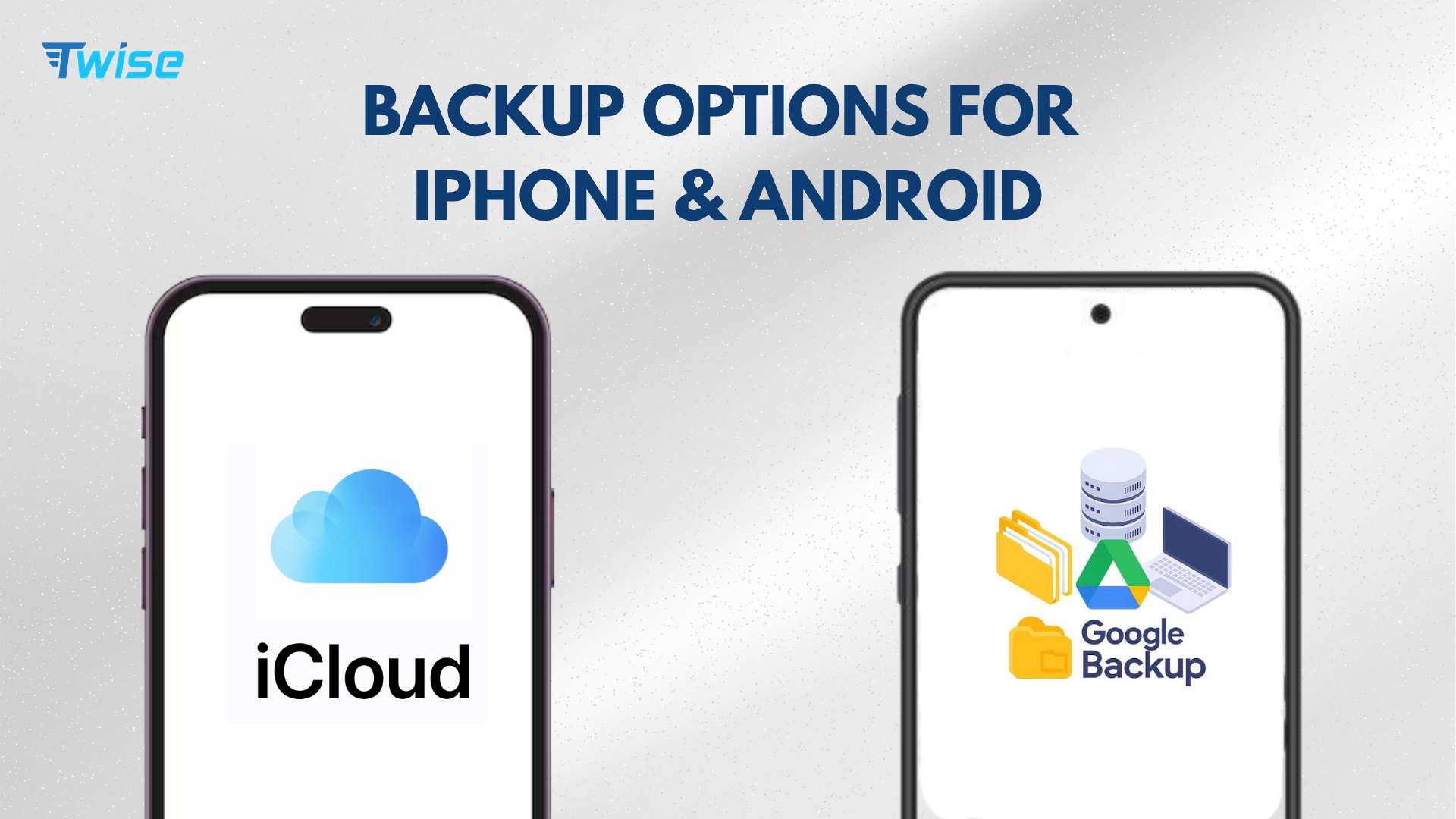
Back up your phone before departure so that losing or damaging the device does not also mean losing travel photos, contacts, tickets, work files, and account information.
A useful backup should include:
- Photos and videos
- Contacts
- Notes and calendars
- Messaging history where supported
- Device settings
- Authenticator recovery information
- Travel documents
- Tickets and reservations
- Insurance details
- Emergency contacts
Complete a full backup over trusted Wi-Fi before leaving. Then confirm that the backup finished successfully. Seeing that backup is enabled is not the same as verifying that a recent backup exists.
Do not store the only copy of your passport, visa, insurance policy, or return ticket on the phone. Keep an encrypted cloud copy and an offline copy accessible from another trusted device or account.
During the trip, automatic photo backup can consume significant mobile data. Set cloud backup to Wi-Fi only unless your prepaid allowance is large enough to support uploads.
A factory reset is not normally required for ordinary tourism. It may be appropriate for high-risk business or government travel, but it also creates recovery and access problems if not planned carefully.
Don’t: Trust Open Wi-Fi Connections
Treat open public Wi-Fi as untrusted, even when the network name resembles the hotel, airport, or café you are visiting.
An attacker can create a network with a convincing name such as “Airport_Free_WiFi” or “Hotel_Guest.” Connecting to the wrong access point may expose unencrypted traffic or redirect you to a fraudulent login page.
CISA recommends confirming the network name and password with the organization providing it. Its wireless network security guidance also warns against automatically connecting to unknown networks.
Before connecting:
- Ask staff for the exact network name.
- Prefer a password-protected network.
- Disable automatic Wi-Fi joining.
- Keep file sharing and AirDrop or Quick Share restricted.
- Confirm that websites use HTTPS.
- Avoid banking or sensitive work systems where possible.
- Use mobile data for high-risk transactions.
- Forget the network after leaving.
-
Ensure you always have enough data for your apps to run at their best.
On iPhone, open Settings > Wi-Fi > Ask to Join Networks and choose Ask or Notify. For a saved network, tap the information icon and disable Auto-Join.
On Android, Wi-Fi preferences vary by manufacturer. Open the Wi-Fi settings and disable options such as Connect to Open Networks, Turn on Wi-Fi automatically, or automatic hotspot connection.
A VPN can reduce some network risks, but it does not make a fraudulent website legitimate or protect you from entering credentials into a phishing page.
Ensure you always have enough data for your apps to run at their best.
Frequently Asked Questions
Conclusion
Using your phone overseas safely requires preparation across connectivity, cost control, security, and physical protection.
Turn off roaming on the home line, arrange a prepaid connection, and download essential information before departure. Update the phone, prepare backup authentication methods, enable device tracking, verify a recent backup, and protect the device with a durable case.
Airplane Mode and Wi-Fi remain useful, but neither should be your only plan if you need reliable access outside hotels and airports. A properly configured prepaid travel line gives you more consistent access to maps, bookings, messages, transport alerts, and emergency information without exposing the home SIM to unnecessary roaming data.
